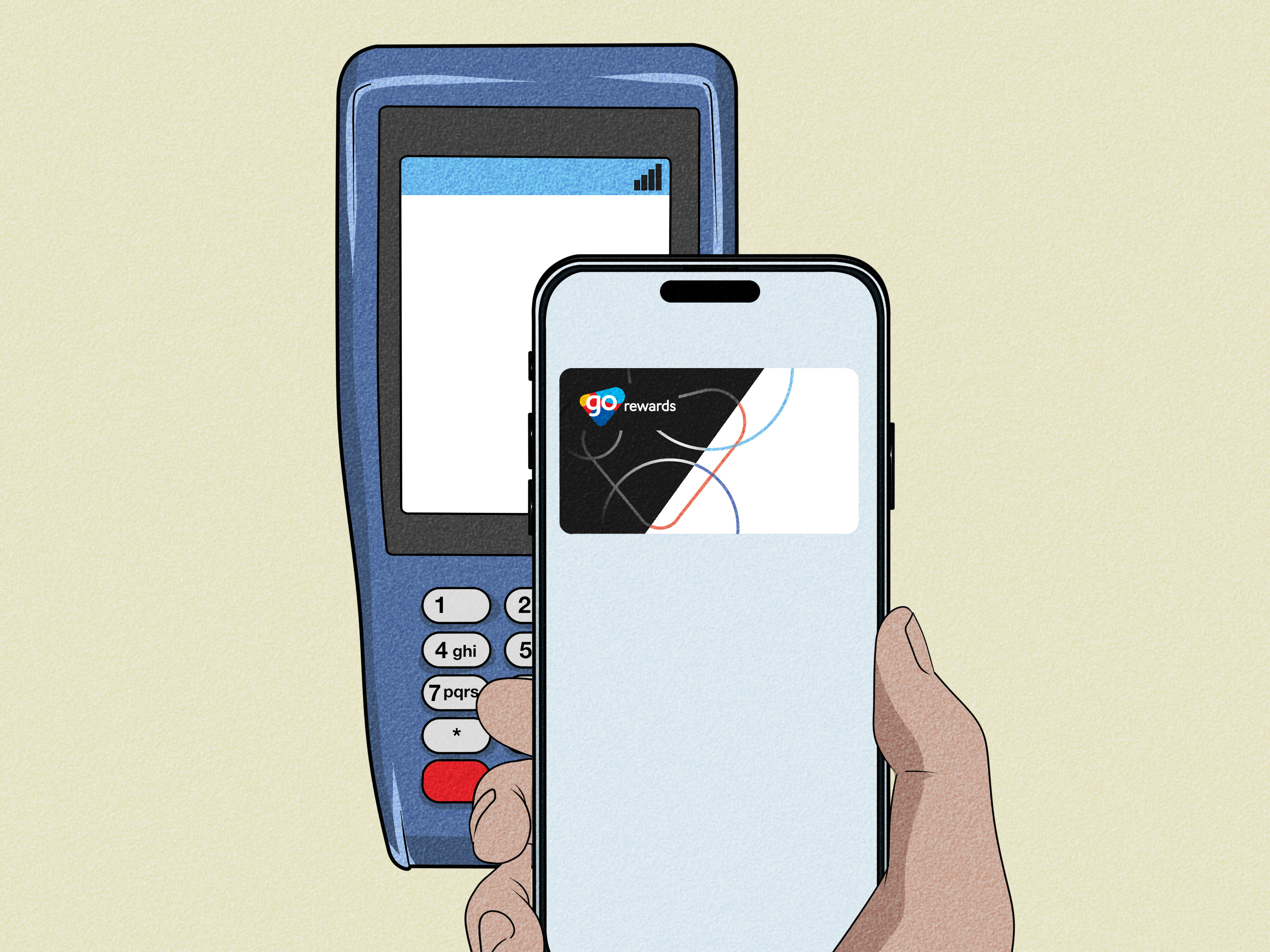
If your physical wallet has started looking like a tiny filing cabinet full of coffee cards, grocery rewards, pharmacy memberships, and “I swear this punch card was important” paper scraps, Apple Wallet can help clean up the chaos. The good news: adding a loyalty card to Apple Wallet is usually quick. The slightly annoying news: Apple Wallet does not let you freely scan and add every plastic rewards card the way some people expect. A loyalty card must be supported by the merchant, delivered as an Apple Wallet pass, or converted into a compatible pass format through a trusted workaround.
This guide explains how to add a loyalty card to Apple Wallet using two simple methods: the official merchant method and the barcode or QR-code pass method. You will also learn what to do when the “Add to Apple Wallet” button is missing, how to use your loyalty card at checkout, and how to avoid common mistakes that make digital cards less convenient than the plastic ones they are supposed to replace.
Quick Answer: Can You Add Any Loyalty Card to Apple Wallet?
Not exactly. Apple Wallet can store eligible rewards cards, coupons, gift cards, tickets, boarding passes, membership passes, and other digital passes, but the card must be provided in a Wallet-compatible format. In everyday language, that usually means one of three things: the retailer supports Apple Wallet inside its app or website, the company sends you a Wallet pass by email or message, or you use a third-party pass creator to make a scannable barcode-style pass for personal convenience.
The most reliable option is always the official one. If your grocery store, coffee shop, pharmacy, gym, restaurant, hotel, airline, or movie theater supports Apple Wallet, you will usually see a button that says Add to Apple Wallet. Tap it, confirm the details, and the pass appears in the Wallet app. Done. No drawer full of loyalty cards. No checkout panic. No dramatic digging through your bag while the cashier quietly ages.
Before You Start: What You Need
Before adding a loyalty card to Apple Wallet, make sure you have an iPhone with the Wallet app installed, an active Apple Account, and the latest practical iOS update for your device. You should also have access to the retailer’s app, website account, email, or QR code. If you want the card to appear on Apple Watch, your watch should be paired with your iPhone and Wallet syncing should be enabled.
Also check whether the loyalty program actually supports Apple Wallet. Some popular brands prefer to keep rewards inside their own apps. Others support Wallet for gift cards but not loyalty IDs. A few offer Wallet passes in one country but not another. In short: the “Add to Apple Wallet” button is the golden ticket. If you do not see it, the merchant may not support Wallet for that specific card.
Method 1: Add a Loyalty Card from the Retailer’s App, Website, Email, or Message
This is the best and safest way to add a loyalty card to Apple Wallet. An official Wallet pass is created by the company that runs the loyalty program, so it is more likely to show the correct name, barcode, points balance, expiration details, store branding, and any updates the merchant chooses to send.
Step 1: Open the Retailer’s App or Account
Start with the official app for the store, restaurant, pharmacy, hotel, airline, or service. Sign in to the account connected to your loyalty program. Look for sections labeled Rewards, Loyalty, Membership, Pay, Wallet, Cards, My Account, or Profile. Retailers love hiding useful buttons in places that feel like mild treasure hunts, so check more than one tab.
For example, a coffee chain may place its rewards card under a payment or scan tab, while a grocery store might show it inside an account barcode screen. A theater chain may attach its rewards number to a digital ticket. A hotel or airline may provide a membership card after sign-in. The exact path changes by company, but the final clue is usually the same: Add to Apple Wallet.
Step 2: Tap “Add to Apple Wallet”
Once you find the button, tap it. Your iPhone will open a preview of the pass. Review the name, barcode, membership number, balance, expiration date, and store details. If everything looks right, tap Add in the upper-right corner. The loyalty card should now appear in the Wallet app.
In many cases, adding a pass to Wallet on your iPhone also makes it available on your paired Apple Watch. That is especially handy for quick checkout situations. Instead of unlocking your phone, opening the retailer app, tapping through three screens, and accidentally opening your weather widget, you can show the pass from Wallet.
Step 3: Add from Email, Safari, QR Code, or Notification
You do not always need the retailer’s app. Some loyalty programs send a Wallet pass through email, text message, web account pages, or QR codes in stores. Open the email, message, website, or notification that contains the pass, then tap Add to Apple Wallet. If you see a QR code at a counter or on a receipt, scan it with the Camera app and follow the prompt if it opens a Wallet-compatible pass.
This method is common for coupons, event memberships, local café reward cards, digital punch cards, gift cards, and small-business loyalty programs. A small bakery, salon, bookstore, or restaurant may not have a full mobile app, but it might still offer a QR code that installs a digital Wallet pass. That is the sweet spot: no app download, no forgotten password, no “reset code sent to the email you stopped using in 2019.”
Step 4: Test the Card Before You Need It
After adding the loyalty card, open Apple Wallet and tap the pass. Make sure the barcode or QR code appears clearly. Check whether the pass includes a membership number or backup text in case the scanner fails. Some Wallet passes also have a back side with more information. Tap the pass, then tap the more or information button if available to view extra details.
Testing matters because checkout counters are where technology chooses drama. A barcode may be too dim, a store scanner may not support a certain format, or a cashier may need the membership number instead of the barcode. If you confirm the pass works before your next shopping trip, you avoid becoming the person holding up the line while whispering, “It worked in my kitchen.”
Method 2: Create a Barcode or QR-Code Pass for a Loyalty Card That Is Not Officially Supported
If your loyalty card does not offer an official Apple Wallet option, you may still be able to create a basic Wallet pass that stores the card’s barcode, QR code, or membership number. This is not the same as full merchant support. It usually will not update your points balance automatically, send official offers, or connect deeply with the retailer’s system. Think of it as a digital copy of the barcode, not a magical upgrade to the loyalty program.
This method works best for simple scan-at-checkout cards where the store only needs a barcode or member number. It may not work for cards that require a dynamic barcode, app login, rotating code, NFC tap, employee verification, or payment-linked rewards.
Step 1: Find the Barcode, QR Code, or Member Number
Start with your physical loyalty card, keychain tag, receipt, retailer app, or online account. Look for the barcode, QR code, or membership number. If you are using a physical card, clean it first so the barcode is readable. If you are using a digital card inside an app, check whether the app allows screenshots. Some apps block screenshots or use rotating codes for security, and those should not be copied into a static Wallet pass.
If the program uses only your phone number at checkout, you may not need Wallet at all. Many pharmacy and grocery loyalty systems can look up rewards by phone number. That is less elegant than tapping a shiny digital card, but it works. Sometimes the simplest technology is just saying ten digits to a cashier and moving on with your life.
Step 2: Use a Trusted Pass Creator App or Website
A third-party pass creator can turn your barcode or QR code into a Wallet-compatible pass file. You usually enter the card name, upload or scan the barcode, choose a pass style, and tap an option to add the finished pass to Apple Wallet. Some apps also let you choose colors, logos, labels, and locations so the pass is easier to recognize.
Be careful here. A loyalty card may reveal personal information, purchase history, points balances, or account access depending on the retailer. Only use tools you trust, avoid uploading sensitive IDs or payment cards, and do not create passes for anything that violates a merchant’s terms. For a basic grocery barcode, this can be practical. For a payment card, government ID, insurance card, school ID, or anything private, do not improvise.
Step 3: Add the Generated Pass to Apple Wallet
After creating the pass, your iPhone should show an Add to Apple Wallet screen or download a Wallet pass file. Review the details carefully. Confirm that the barcode number matches your original card. If it looks correct, tap Add. Open Apple Wallet, find the new pass, and place it near your other loyalty cards.
At checkout, open Wallet, tap the pass, and show the barcode to the scanner. If the scanner fails, ask whether the cashier can type the number manually. This is why adding the human-readable membership number to the pass is helpful. A barcode is great until a scanner decides to become a decorative laser pointer.
How to Use a Loyalty Card in Apple Wallet at Checkout
To use a loyalty card in Apple Wallet, open the Wallet app on your iPhone and tap the card. Show the barcode, QR code, or membership number to the cashier or self-checkout scanner. If the pass supports NFC loyalty, the store may let you tap your iPhone or Apple Watch near the reader, similar to Apple Pay. NFC loyalty passes depend on merchant support, so do not assume every rewards card can tap automatically.
If the loyalty card is linked with Apple Pay at a participating merchant, the checkout process may be even smoother. In some cases, you can earn or redeem rewards while paying. In other cases, you scan the loyalty card first and pay afterward. The best habit is simple: scan rewards before payment unless the store specifically tells you the order does not matter.
Why the “Add to Apple Wallet” Button Is Missing
The most common reason is that the merchant does not support Apple Wallet for that card. The second most common reason is that you are looking in the wrong part of the app. The third reason is that the app, website, or region has changed. Retailers update loyalty systems frequently, and support can vary between gift cards, payment cards, rewards accounts, coupons, and membership IDs.
If the button is missing, update the retailer app, sign out and back in, check the rewards or profile section, visit the retailer’s website in Safari, and search your email for the loyalty program name plus “Apple Wallet.” If none of that works, contact the merchant. Apple cannot add a loyalty card to Wallet unless the card is delivered in a supported format.
Troubleshooting: What to Do If the Loyalty Card Will Not Add
Update iOS and the Retailer App
Software updates often fix Wallet-related issues. Update iOS if your device supports a newer version, then update the retailer’s app from the App Store. Restart the iPhone and try again. This is boring advice, but boring advice is often what saves the day.
Use Safari Instead of an In-App Browser
If a Wallet pass link opens inside a social media app, email preview, or in-app browser, it may not behave correctly. Copy the link and open it in Safari. Then tap Add to Apple Wallet again.
Check Your Region and Account
Some loyalty passes are available only in certain countries, states, store chains, or account types. Make sure your retailer account is active and that your membership card has been fully set up. If the card belongs to another person or old account, the pass may fail.
Remove and Re-Add the Pass
If a pass is outdated or broken, open Apple Wallet, tap the pass, tap the more or information button, and remove it. Then return to the official app or website and add it again. This can refresh a stale barcode, expired coupon, or old membership record.
Privacy and Safety Tips
Apple Wallet is convenient, but loyalty programs still collect data according to the merchant’s own privacy practices. A rewards card can be connected to your purchases, store visits, offers, and account profile. Before adding every card under the sun, decide which programs are actually useful. A digital clutter pile is still clutter; it just has better animations.
For third-party pass creators, be extra selective. Do not upload payment cards, private IDs, medical cards, insurance information, or anything that could expose sensitive personal details. For ordinary loyalty barcodes, choose tools with clear privacy policies and minimal data requirements. When in doubt, use the merchant’s official app instead.
Official Wallet Pass vs. Barcode Backup: Which Is Better?
An official Wallet pass is better for most people. It may support live updates, branded design, notifications, location-based relevance, Apple Watch access, and smoother checkout. A barcode backup is best when the retailer does not support Apple Wallet but the store scanner can read a static barcode.
Here is the practical rule: if the merchant offers Add to Apple Wallet, use it. If the merchant does not, and your loyalty card is just a basic barcode, a personal Wallet pass can be a handy backup. If the loyalty program uses a secure or changing code, stick with the official app.
Real-World Examples
Imagine you have a coffee rewards card. The official app shows a scan screen and an option to add the card to Wallet. That is Method 1. Add it, open Wallet at the counter, scan it, and collect points toward your next caffeine-powered personality upgrade.
Now imagine you have a local sandwich shop punch card with a QR code. The shop has no app, but it offers a QR sign that says “Add our rewards card to your mobile wallet.” Scan it with your iPhone camera, tap the Wallet prompt, and add the pass. That is still Method 1 because the business is providing the pass.
Finally, imagine you have an old plastic grocery loyalty card with a barcode, and the grocery chain does not support Apple Wallet. You can use a pass creator to make a simple scannable Wallet pass for your own convenience. That is Method 2. It may scan perfectly, or the store may require the phone number instead. Either way, keep the original card until you know the digital version works.
Common Mistakes to Avoid
Do not assume the plus button in Apple Wallet can add every loyalty card. That button is mainly for supported cards and passes, and loyalty cards generally need to come from a merchant or compatible pass file. Do not delete your original card immediately. Do not upload sensitive cards to random websites. Do not expect a barcode backup to update points automatically. And do not wait until you are at the register with twelve people behind you to test the pass for the first time.
Another mistake is confusing Apple Wallet with a retailer’s in-app wallet. Some stores have a feature called “Wallet” inside their own app, but that does not always mean Apple Wallet. A retailer wallet may store coupons, payment methods, gift cards, or rewards inside the retailer app only. Look specifically for the Apple Wallet button if you want the card in the iPhone Wallet app.
500-Word Experience Section: What It Is Actually Like to Use Loyalty Cards in Apple Wallet
After using loyalty cards in Apple Wallet for everyday shopping, the biggest benefit is not that it feels futuristic. The real benefit is that it removes tiny moments of friction. Those tiny moments add up. Before digital loyalty cards, checkout often involved searching through a physical wallet, finding the wrong card, realizing the right card was attached to a different keychain, and then giving up because saving 43 cents suddenly felt like a full-time job. Apple Wallet makes the best-supported cards feel almost invisible.
The smoothest experience happens when the retailer has an official Wallet pass. The card looks clean, the barcode is easy to scan, and the pass is available even when the app feels slow. This matters in stores with weak signal. Retail apps sometimes load like they are being powered by a sleepy hamster, especially near the back of a supermarket. A Wallet pass usually opens faster because it is already stored on the device. That speed is the difference between a calm checkout and a small public performance titled “Person Fighting With Phone.”
Apple Watch support can be surprisingly useful too. For quick coffee runs, gym check-ins, transit-adjacent memberships, and stores with handheld scanners, showing a barcode from the wrist feels convenient. It is not perfect for every scanner angle, and sometimes the iPhone screen is easier, but the watch is excellent when your hands are full. If you have ever balanced a drink, keys, a tote bag, and your dignity at the same time, you understand the appeal.
The less perfect experience comes from unsupported cards. A barcode backup can work beautifully for simple loyalty programs, but it is not guaranteed. Some scanners struggle with phone screens. Some stores use systems that require a phone number. Some apps generate rotating barcodes that should not be copied. Some cashiers are familiar with digital cards; others look at your phone like you have handed them a tiny glowing puzzle. That does not mean the method is bad. It just means you should treat unofficial passes as backups, not replacements for the retailer’s real system.
Organization also matters. If you add every possible card, Apple Wallet can become the digital version of the clutter you were trying to escape. A good approach is to keep only the loyalty cards you use often: grocery, pharmacy, coffee, gas, gym, travel, restaurants, and maybe one or two local favorites. Remove passes you no longer use. Rename or design third-party passes clearly so you can recognize them quickly. A pass called “Rewards Card” is not helpful when you have six of them and a cashier waiting.
The best habit is to test each loyalty card once during a low-pressure visit. Go when the store is not busy, scan the pass, and confirm that rewards post correctly. If it works, great. If it fails, add the phone number or physical card back into your routine. Apple Wallet is supposed to make life easier, not turn checkout into a troubleshooting workshop.
Conclusion
Learning how to add a loyalty card to Apple Wallet is mostly about knowing which method fits your card. The official route is the best: open the retailer’s app, website, email, message, or QR code and tap Add to Apple Wallet. When that option is not available, a barcode or QR-code pass can be a useful backup for simple scan-based loyalty cards.
Apple Wallet will not magically support every rewards program, and that is the key detail many guides skip. The merchant has to support Wallet passes, or you need a compatible pass file. Once you understand that, the process becomes much easier. Add the cards you actually use, test them before checkout, protect your private information, and enjoy the rare modern pleasure of carrying fewer pieces of plastic.
Note
This article is written for web publication and focuses on real Apple Wallet behavior: supported loyalty cards should be added through the merchant’s official Wallet pass, while barcode or QR-code backups should be used carefully only for simple, non-sensitive loyalty cards.