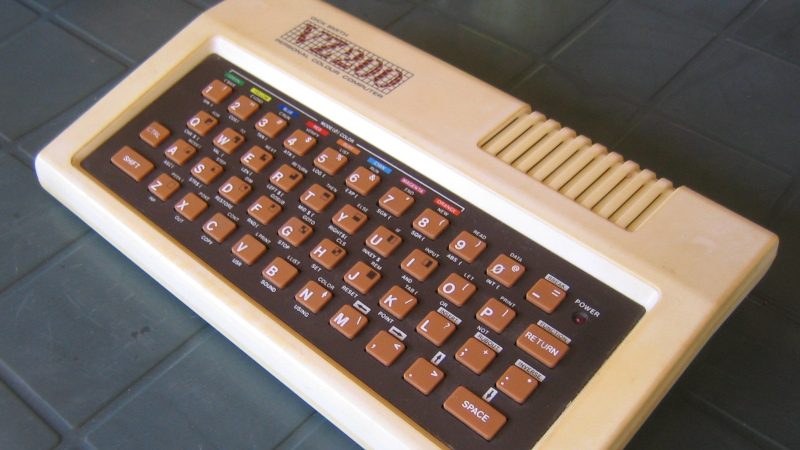
A minimalist home computer is not a bare desk with one lonely laptop and a suspiciously inspirational coffee mug. It is a thoughtfully built system that does exactly what you need, avoids what you do not, and refuses to turn your workspace into a cable jungle. The goal is simple: fewer parts, better performance, cleaner focus, lower maintenance, and a setup that does not make your room look like a small electronics store had a panic attack.
The modern home computer is no longer just a beige tower humming under a desk. It can be a laptop connected to a monitor, a mini PC hidden behind a display, an all-in-one desktop, or even a compact workstation built around a single USB-C cable. The minimalist version is not about owning the smallest device possible. It is about choosing the right anatomy: the essential hardware, software, security habits, ergonomics, and storage system that support your life without demanding constant attention.
Whether you work remotely, manage family photos, write, study, edit videos, pay bills, stream movies, or run a small business from the corner of your dining room, the best minimalist home computer is the one that disappears into the background. It should boot quickly, stay quiet, back itself up, protect your data, and let you get back to being a human being instead of an unpaid IT department.
What Makes a Home Computer “Minimalist”?
Minimalism in computing is often misunderstood. It does not mean buying the cheapest machine, removing every app, or pretending you enjoy typing long documents on a tablet keyboard the size of a cracker. A minimalist home computer is built around intention. Every component earns its place.
That means the computer should match your actual workload. A person who writes emails, joins video calls, and edits spreadsheets does not need a giant gaming tower with glowing fans visible from space. A photographer, software developer, or video editor may need more processing power, memory, and storage, but even that setup can be minimalist if it is organized, quiet, and efficient.
The core idea is reduction with purpose. You reduce physical clutter, software clutter, notification clutter, and maintenance clutter. You keep what improves speed, comfort, security, and creativity. You remove what only adds friction.
The Core Machine: Laptop, Mini PC, or All-in-One?
The first organ in the anatomy of a minimalist home computer is the main machine. This is where many people overspend, underspend, or buy something based on a sale banner that screams “limited time” with the emotional intensity of a soap opera villain.
Option 1: Laptop With a Dock
For many users, a laptop connected to a monitor, keyboard, and mouse is the cleanest setup. It gives you portability when you need it and a full desktop experience when you are home. One USB-C or Thunderbolt dock can connect power, display, storage, Ethernet, webcam, and accessories through a single cable. That one-cable life feels almost luxurious, like your desk finally learned manners.
This option is ideal for students, remote workers, freelancers, and anyone who moves between rooms, offices, libraries, or coffee shops. The downside is that laptops can run hotter under heavy workloads, have fewer upgrade options, and may cost more than a mini PC with similar desktop performance.
Option 2: Mini PC
A mini PC is the quiet hero of minimalist computing. It is small enough to sit under a monitor, mount behind a display, or hide on a shelf, yet modern models can handle web browsing, office work, video calls, media streaming, light creative tasks, and even some casual gaming. For a fixed home workspace, a mini PC can be more elegant than a laptop because it keeps the desk permanent and ready.
The best minimalist mini PC usually has a modern processor, 16GB of memory, a fast solid-state drive, Wi-Fi 6 or newer, Bluetooth, enough USB ports, and support for at least one external monitor. Some models allow memory and storage upgrades, while others are more sealed. Check before buying, because “tiny” sometimes means “adorable but stubborn.”
Option 3: All-in-One Desktop
An all-in-one computer combines the display and computer into one unit. It is visually clean, easy to set up, and great for shared spaces, kitchens, family rooms, and home offices where design matters. The tradeoff is repairability and upgradeability. If the screen or internal computer ages badly, the whole unit may become harder to reuse.
All-in-ones work best for people who want a beautiful, simple setup and do not plan to tinker. If your computing needs are stable and you value appearance, an all-in-one can be a strong minimalist choice.
The Essential Specs: Buy Enough, Not Everything
A minimalist home computer should feel fast for years, not just on the first day when it still smells faintly of cardboard and optimism. The trick is to buy enough performance without paying for hardware you will never use.
| Component | Minimalist Recommendation | Why It Matters |
|---|---|---|
| Processor | Modern Intel Core, AMD Ryzen, Apple Silicon, or equivalent | Keeps everyday tasks smooth and supports newer operating systems. |
| Memory | 16GB RAM for most users; 32GB for creative or technical work | Prevents slowdowns when multitasking with browsers, apps, and video calls. |
| Storage | 512GB SSD minimum; 1TB if you store photos, videos, or projects locally | Solid-state drives make startup, search, and app launching much faster. |
| Graphics | Integrated graphics for everyday use; dedicated GPU only for gaming, 3D, or heavy editing | Avoids extra heat, cost, power use, and noise when advanced graphics are unnecessary. |
| Ports | USB-C, USB-A, HDMI or DisplayPort, audio, and Ethernet if possible | Reduces adapter clutter and keeps your setup flexible. |
For a clean home setup, prioritize responsiveness over flashy specs. A fast SSD, enough RAM, and a current processor will usually matter more than a giant storage number or a graphics card you only use to render animated spreadsheets in your imagination.
The Display: Your Daily Window
The monitor is the part of the computer you stare at most, so it deserves more attention than people give it. A minimalist home computer usually works best with one excellent monitor instead of two mediocre ones, unless your workflow truly benefits from a second screen.
For most home offices, a 24-inch to 27-inch monitor is the sweet spot. A 27-inch 1440p display gives more usable space than a basic 1080p screen without making text too tiny. A 4K display can be excellent for design, photography, and crisp text, but it may cost more and require more graphics power.
Look for adjustable height, tilt, and rotation. A beautiful monitor that forces your neck into shrimp posture is not minimalist; it is decorative punishment. Position the top of the screen at or slightly below eye level, keep the display directly in front of you, and place it about an arm’s length away. Good ergonomics make a setup feel calmer because your body is not quietly filing complaints every 12 minutes.
Keyboard and Mouse: Small Tools, Big Consequences
A minimalist keyboard is not necessarily tiny. It is comfortable, reliable, and appropriate for your work. If you type all day, a compact mechanical keyboard or quality low-profile keyboard can improve comfort and reduce desk space. If you use number-heavy spreadsheets, keep the number pad. Minimalism should not make your job harder just to satisfy a desk photo.
The mouse or trackpad should fit your hand naturally. Some users prefer an ergonomic mouse, vertical mouse, or trackball to reduce wrist strain. Keep the keyboard and pointing device close enough that your elbows stay near your body and your wrists remain neutral. The less you reach, twist, and hunch, the more your workstation behaves like a helpful tool instead of a medieval test of character.
Sound, Camera, and Lighting: The Video Call Triangle
Remote work turned everyone into a tiny news anchor. A minimalist home computer should handle calls without forcing you to sound like you are broadcasting from the inside of a soup can.
For most users, the best upgrade is not a fancy webcam. It is lighting. Place a soft light in front of you, not behind you, so your face is visible. A decent USB webcam or laptop camera works much better when the lighting is kind. For audio, even modest wired earbuds or a simple USB microphone can beat the echo from built-in speakers.
The minimalist rule is this: improve the weakest link first. If people cannot hear you, fix the microphone. If you look like a mysterious witness in a documentary, fix the lighting. If your background is chaos, use a clean wall, a tidy shelf, or a subtle virtual background that does not make your hair disappear during meetings.
Cables and Power: The Skeleton Under the Desk
Cable management is where minimalist dreams often go to get tangled. A good setup uses fewer cables, shorter cable paths, and simple routing. The goal is not perfection. The goal is being able to vacuum under your desk without discovering a fossilized HDMI cable from 2014.
Use a surge protector with enough outlets, but avoid daisy-chaining power strips. Route cables along the back edge of the desk or through a cable tray. Use Velcro ties instead of permanent zip ties so you can change things later. Label power bricks if you have several. Keep charging cables in one place, and remove mystery cables if you cannot identify them after a week.
Energy efficiency also belongs in this section. Laptops and compact computers often use less power than large desktop towers, especially for everyday tasks. ENERGY STAR-certified computers and monitors can reduce electricity use, heat, and noise. A minimalist setup should not need a fan orchestra just to open a browser.
Storage and Backup: Minimalism Is Not Deleting Everything
Digital minimalism does not mean gambling with your files. A clean computer without backups is not elegant; it is one coffee spill away from emotional opera.
Use a simple storage structure: Documents, Projects, Photos, Finance, and Archive. Avoid dumping everything on the desktop. Your desktop should not look like a digital junk drawer with icons forming tiny neighborhoods.
For backups, follow a practical version of the 3-2-1 rule: keep your original files, one local backup, and one off-site or cloud backup. A local external SSD is fast for recovery. A cloud backup protects you if the computer and drive are stolen, damaged, or defeated by gravity. Test your backups occasionally. A backup you never test is more of a hopeful rumor than a plan.
Security: The Invisible Part of the Minimalist Computer
Security is part of the anatomy because the cleanest desk in the world means very little if your accounts are protected by the password “Fluffy123.” A minimalist home computer should reduce risk without creating daily annoyance.
Start with automatic updates for the operating system, browser, and key apps. Use a password manager so every important account can have a unique, strong password. Turn on multi-factor authentication for email, banking, cloud storage, and work accounts. Encrypt the computer when available, and store recovery keys safely. On Windows, device encryption or BitLocker may protect data if the machine is lost. On Mac, FileVault can do the same.
Your router matters too. Change default administrator passwords, use a strong Wi-Fi password, keep router firmware updated, and avoid leaving remote administration enabled unless you know exactly why you need it. The home network is the front door of your digital house. Do not leave the key under a flowerpot labeled “key.”
Software Minimalism: Fewer Apps, Better Habits
Software clutter can be worse than hardware clutter because it nags, updates, syncs, launches at startup, and sends notifications as if every app has breaking news. A minimalist computer should have fewer startup apps, fewer browser extensions, fewer duplicate tools, and fewer notification pop-ups.
Keep one primary browser, one office suite, one notes app, one cloud storage system, one password manager, one photo library, and one communication hub if possible. Remove trialware, old utilities, unused launchers, and apps you installed once to open a file and never touched again.
Use browser profiles if you need separation between work and personal life. Pin only essential apps to the taskbar or dock. Set “Do Not Disturb” during focus blocks. Digital peace is not accidental; it is configured.
Three Minimalist Home Computer Blueprints
The Student Setup
A lightweight laptop, 24-inch monitor, compact keyboard, wireless mouse, cloud storage, password manager, and a small USB-C hub. This setup handles research, writing, online classes, streaming, and presentations without taking over a dorm room or bedroom desk.
The Remote Work Setup
A laptop with docking station or mini PC, 27-inch monitor, ergonomic keyboard and mouse, webcam, simple desk light, Ethernet or strong Wi-Fi, local backup drive, and cloud backup. This setup is designed for meetings, documents, spreadsheets, project management tools, and long workdays.
The Creative Setup
A more powerful mini PC, desktop, or laptop with 32GB RAM, 1TB or larger SSD, color-accurate monitor, external storage, backup drive, good headphones, and calibrated software tools. It is still minimalist because it avoids unnecessary RGB, duplicate accessories, and random drives named “Final_Final_Really_Final.”
Common Mistakes That Ruin a Minimalist Setup
The first mistake is buying for fantasy instead of reality. If you mostly browse, write, and watch videos, you probably do not need a workstation-grade computer. If you edit 4K video, you probably should not buy the cheapest laptop and hope motivation will provide extra RAM.
The second mistake is ignoring ergonomics. A clean setup that hurts your neck is not successful. Chair height, monitor position, wrist angle, lighting, and movement breaks are part of the computer system because your body is the user interface.
The third mistake is forgetting maintenance. Dust the computer vents, update software, review storage, test backups, and remove unused apps. Minimalism is not a one-time shopping style. It is a maintenance rhythm.
Experience Notes: Living With a Minimalist Home Computer
After using several home computer arrangements over the years, the most surprising lesson is that minimalism is less about the computer and more about the decisions around it. A powerful machine can still feel chaotic if every cable is visible, every app opens at startup, and every notification thinks it deserves a parade. Meanwhile, a modest laptop can feel premium when it is connected to a good monitor, a comfortable keyboard, a reliable backup system, and a desk that does not require archaeological excavation before work begins.
The biggest quality-of-life improvement usually comes from reducing friction. One cable to connect a laptop. One place for downloaded files. One folder for active projects. One backup routine. One charger that actually belongs to the device it is charging. These small choices sound boring, but they create a setup that feels calm every morning. You sit down, wake the computer, and begin. No hunting for adapters. No clearing space for a notebook. No wondering why the webcam is aimed at your ceiling fan like it is producing a weather report.
A minimalist home computer also changes how you buy technology. Instead of asking, “What is the most powerful thing I can afford?” you start asking, “What is the simplest reliable tool for my real day?” That question saves money and space. A writer may benefit more from a great keyboard than from a faster processor. A remote worker may get more value from better lighting and audio than from a premium graphics card. A family computer may need clear user accounts and strong backups more than it needs a futuristic case with glowing vents.
The emotional benefit is real, too. A tidy computer setup reduces the tiny background stress of disorder. When your desk has breathing room, your mind often follows. You are less tempted to multitask because there are fewer distractions in front of you. You are more likely to maintain your system because it is not overwhelming. Even cleaning becomes easier: wipe the monitor, dust the keyboard, check the cable tray, done. No heroic weekend required.
Of course, minimalism can go too far. Removing every accessory may look good in a photo, but if you constantly need an adapter, external drive, SD card reader, or second screen, hiding those tools in a drawer only creates a different kind of clutter. The best minimalist setup keeps frequently used tools accessible and removes only the unnecessary ones. It is practical, not performative.
The final experience-based takeaway is this: build your computer station like a kitchen. Keep the tools you use daily within reach, store occasional tools nearby, and get rid of gadgets that only seemed useful at 2 a.m. during an online sale. When every part has a job, the whole system feels lighter. That is the true anatomy of a minimalist home computer: not emptiness, but usefulness without noise.
Conclusion: The Minimalist Computer Is a System, Not a Gadget
The anatomy of a minimalist home computer includes more than a sleek device on a clean desk. It includes the right machine, a comfortable display, input tools that protect your hands, sensible cables, efficient power use, reliable backups, strong security, and software that stays out of your way. The best setup is not the most expensive or the most photogenic. It is the one that helps you work, learn, create, connect, and relax with the fewest obstacles.
Choose hardware that fits your actual life. Build a desk that supports your body. Protect your data before disaster auditions for a role in your week. Keep your apps lean, your files organized, and your cables under control. Do that, and your home computer becomes what it should have been all along: a quiet, capable tool that works hard without making the room feel crowded.