Combining columns in Excel sounds easy until Excel decides to behave like a magician with a bad attitude: now you see your data, now you don’t. A lot of people click Merge & Center, feel briefly powerful, and then realize Excel kept only one cell’s content and quietly tossed the rest into the void. Not ideal.
If your goal is to combine columns in Excel without losing data, the trick is simple: don’t merge the cells themselves when they already contain information. Instead, create a new column and use a formula, Flash Fill, or Power Query to join the values together safely. That way, your original columns stay intact until you are absolutely sure the final result looks right.
In this guide, you’ll learn the safest and easiest ways to combine columns in Excel, when to use each method, how to keep spaces, commas, and dates from turning into nonsense, and how to avoid the classic spreadsheet mistakes that make people stare at the screen like it personally offended them.
Why “Merge Cells” Is Not the Right Tool
Let’s clear up the biggest source of confusion first. In Excel, merging cells and combining data are not the same thing.
Merging cells changes the layout. It is mostly for formatting headings across multiple columns. Combining data joins the contents of two or more cells into one result, such as turning John and Smith into John Smith.
So if column A contains first names and column B contains last names, clicking Merge Cells is like trying to fix a loose screw with a banana. Technically you did something, but it was not the right something.
The Safe Rule
Whenever you want to combine text from multiple columns, insert a helper column first. Put the new combined result there, review it, then replace the original data only if needed.
The Safest Workflow Before You Combine Anything
Before you touch your data, use this workflow:
- Insert a new blank column next to the columns you want to combine.
- Enter a formula or use Flash Fill in the first row of that new column.
- Fill the result down through the rest of your rows.
- Check several rows for spacing, punctuation, blanks, dates, and numbers.
- Copy the final combined column.
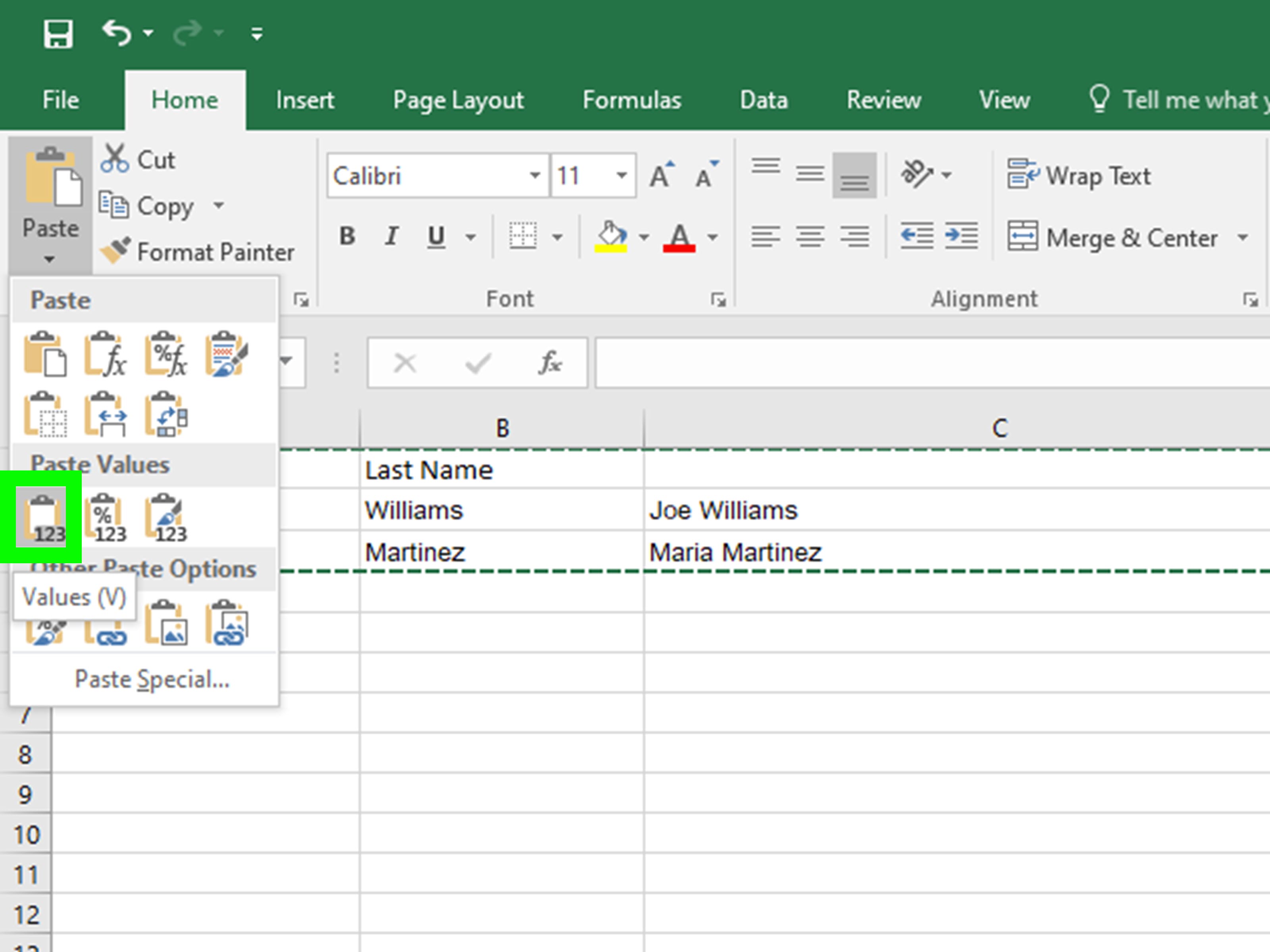
- Use Paste Special > Values if you want to keep the result without formulas.
- Only then delete or hide the original columns.
This workflow keeps your source data safe. In Excel, paranoia is not a character flaw. It is a survival skill.
Method 1: Use the Ampersand (&) for Quick Combines
The ampersand method is the fastest way to combine two or more columns in Excel. It is simple, flexible, and easy to read once you get used to it.
Example: Combine First and Last Name
If first names are in A2 and last names are in B2, use:
This formula joins the value in A2, a space, and the value in B2. The result might be John Smith.
Example: Add a Comma
This works well for city and state, such as Dallas, Texas.
Why People Like It
- Fast to type
- Works in older Excel versions
- Great for combining a few cells with custom separators
Where It Gets Annoying
If you need to combine many columns, the ampersand method can turn into formula spaghetti pretty quickly. One or two separators are fine. Ten separators and three optional blanks? Welcome to the jungle.
Method 2: Use CONCAT for a Cleaner Formula
CONCAT is a newer Excel function designed to combine text from multiple cells or ranges. It is cleaner than older methods and works well when you do not need Excel to insert separators automatically.
Example
This gives you the same result as the ampersand example above. You can also combine more fields:
That could produce something like John Smith – Sales.
When CONCAT Is a Good Choice
- You want a modern built-in Excel function
- You are combining several cells
- You do not mind typing your separators manually
One Important Limitation
CONCAT does not have a built-in option to ignore empty cells or insert a separator automatically between each item. If some cells are blank, you may get awkward extra punctuation or spaces unless you build around that with more logic.
Method 3: Use TEXTJOIN for the Best All-Around Result
If Excel formulas had a teacher’s pet, it would probably be TEXTJOIN. This function is excellent for combining columns because it lets you define a separator once and choose whether to ignore empty cells.
Example: Combine Names with a Space
The first argument is the separator, the second tells Excel whether to ignore blank cells, and the rest is the range to combine.
Example: Combine Multiple Fields
If A2 through D2 contain street, city, state, and ZIP code, this formula builds a clean address line without forcing you to hand-type every comma between every field.
Why TEXTJOIN Is Often the Best Choice
- One separator applies across the whole range
- It can ignore empty cells
- It is perfect for messy real-world data
- It keeps formulas shorter and easier to maintain
If one row has a middle name and another does not, TEXTJOIN handles that much more gracefully than a long chain of ampersands. It is the difference between a nice straight haircut and cutting your bangs with kitchen scissors.
Method 4: Use Flash Fill When You Do Not Want a Formula
Flash Fill is a great option when you want results quickly and do not care about keeping a formula behind the scenes. It works by recognizing the pattern you type.
How to Use It
- Insert a new column next to your source columns.
- Manually type the combined result for the first row.
- Start typing the second row, or go to Data > Flash Fill.
- Press Ctrl+E on Windows to trigger Flash Fill fast.
When Flash Fill Works Well
- Combining first and last names
- Creating email addresses from name parts
- Standardizing text patterns
- Quick one-time cleanup jobs
When to Be Careful
Flash Fill is smart, but it is still pattern-based. That means it can make mistakes if your data is inconsistent. Always scan the results before you trust it with your spreadsheet and your reputation.
Method 5: Use Power Query for Big or Repeating Jobs
If you regularly combine columns in large datasets, Power Query is worth learning. It is built for repeatable data cleanup and transformation. Instead of writing formulas row by row, you define the steps once and refresh the result later.
When Power Query Makes Sense
- You combine the same columns every week or month
- You work with imported CSV or exported system reports
- Your dataset is large
- You want a repeatable, less error-prone process
Basic Idea
- Load your data into Power Query.
- Select the columns you want to combine.
- Choose Merge Columns.
- Select the separator you want.
- Load the result back into Excel.
For recurring reports, this can save a ridiculous amount of time. It also makes you look suspiciously organized, which in many offices is a career advantage.
How to Keep Spaces, Dates, and Numbers Looking Right
Combining columns is easy. Combining them cleanly is the real job.
1. Add Spaces or Punctuation on Purpose
Excel will not magically insert spaces between words unless you tell it to. Use text inside quotation marks:
2. Use TEXT for Dates and Numbers
If one of your columns contains a date, time, or formatted number, combining it directly can create ugly results. Use the TEXT function to preserve the format you want.
This is especially helpful for invoices, reports, customer records, and anything involving money where people tend to notice when things look weird.
3. Use TRIM to Clean Extra Spaces
Imported data often comes with hidden or inconsistent spaces. TRIM can help clean that up.
If your results look like they were spaced by a cat walking across the keyboard, TRIM is your friend.
How to Combine Columns and Then Keep the Result
After your formulas work, you may want to replace them with static text so the combined data does not change when the original columns change.
Use Paste Special > Values
- Select the combined results.
- Copy them.
- Right-click where you want them to stay.
- Choose Paste Special > Values.
This is a crucial step if you plan to delete the source columns. If you skip it, your formula may break the second those original cells disappear. Excel is many things, but forgiving is not one of them.
Common Mistakes to Avoid
Using Merge & Center on Data Columns
This changes layout, not logic. It is fine for titles, bad for combining live data.
Deleting the Original Columns Too Early
Always verify your combined results first. Then paste values if needed. Then clean up.
Forgetting Blank Cells
If some rows have missing values, TEXTJOIN is usually safer than CONCAT or long ampersand chains.
Ignoring Formatting
Dates and numbers often need the TEXT function, or the final result may look nothing like what you expected.
Not Checking Flash Fill Results
Flash Fill is fast, but fast is not always flawless.
Best Method by Situation
- For simple two-column joins: use
& - For modern function-based combining: use
CONCAT - For the cleanest output with blanks: use
TEXTJOIN - For a quick no-formula result: use Flash Fill
- For repeatable large data jobs: use Power Query
Real Examples You Can Use Right Away
Full Name
Useful when A2 is first name, B2 is middle name, and C2 is last name.
Email Address
Great for creating standardized email addresses from first and last names.
Mailing Address
Handy for street, city, state, and ZIP.
Item and Date
Perfect for schedules, inventory logs, and status reports.
What These Excel Fixes Feel Like in Real Life
Here is the part most tutorials skip: combining columns in Excel is rarely just about formulas. In real life, it is usually about cleaning up messy data that arrived five minutes before a meeting.
Maybe you exported a customer list from a CRM and found first names in one column, last names in another, and a third column full of mystery spaces that seem to have been added by a sleep-deprived raccoon. Or maybe your manager wants a polished contact list in one column now, and the phrase “should only take a minute” has just been spoken out loud. That is usually when Excel starts to feel less like software and more like a trust exercise.
One of the most common real-world uses for combining columns is building full names, addresses, product labels, usernames, or report descriptions. Sales teams do it when cleaning lead lists. HR teams do it when creating employee directories. Finance teams do it when turning raw exports into readable reports. Operations teams do it when they need one neat identifier instead of four awkward fragments spread across the worksheet like puzzle pieces from different boxes.
The funny thing is that the formula itself is often the easy part. The harder part is dealing with imperfect data. Some rows have missing middle names. Some have extra spaces. Some ZIP codes were imported as numbers and lost their leading zero. Some dates suddenly turn into serial numbers that look like a password generated by a malfunctioning toaster. That is why the best Excel users are not just people who know formulas. They are people who know how to protect the result.
That is also why helper columns are such a lifesaver. When you create a new column for the combined result, you give yourself room to test, review, and fix mistakes without wrecking the source data. It feels slower at first, but it saves time because you are not rebuilding the worksheet after one wrong click. Most spreadsheet disasters are not dramatic. They are quiet. One formula gets overwritten. One original column gets deleted too early. Then everyone spends the next hour pretending not to panic.
There is also something satisfying about choosing the right method for the job. The ampersand feels fast and scrappy. TEXTJOIN feels elegant. Flash Fill feels like Excel is finally trying to be helpful for once. Power Query feels like you have stopped doing chores by hand and hired a tiny robot assistant. The more you work with Excel, the more you realize that productivity is not about knowing every feature. It is about knowing which one will cause the fewest headaches on a Tuesday afternoon.
So yes, combining columns in Excel without losing data is a technical skill. But it is also a practical one. It helps you make spreadsheets cleaner, reports easier to read, and your work a lot less fragile. And once you stop using Merge & Center for live data, congratulations: you have already avoided one of Excel’s most popular traps.
Conclusion
If you need to combine columns in Excel without losing data, the winning strategy is simple: never merge populated cells when you mean to combine their contents. Use a new column instead, then choose the method that fits your job. The ampersand is quick, CONCAT is modern, TEXTJOIN is the most flexible, Flash Fill is great for one-off tasks, and Power Query is the heavyweight champion for repeatable cleanup.
The best part is that once you understand the difference between merging cells and combining values, Excel becomes far less chaotic. Your data stays safe, your output looks polished, and you can stop giving your spreadsheet the kind of side-eye normally reserved for suspicious emails.