If your Android phone has ever been face-up on a desk while a message preview popped up like an uninvited party guest, you already know the problem. Texts are private. Phones are personal. And yet, one tiny notification can turn your screen into a public bulletin board.
The good news? You do not need to become a secret agent, install sketchy “vault” apps, or move to a cabin in the woods to protect your conversations. In most cases, Android already gives you smart ways to keep messages out of sight. Some options simply hide previews. Others tuck conversations away. And newer Android phones can lock sensitive apps inside a private area.
In this guide, you will learn how to hide messages on Android using three easy methods that actually work in real life. Whether you want to stop lock-screen snooping, clean up your inbox, or hide an entire messaging app behind extra security, there is a method here for you.
The Quick Answer
If you want the fastest way to hide messages on Android, start with one of these:
- Hide message previews on the lock screen so people cannot read incoming texts.
- Archive conversations in Google Messages to move chats off your main screen without deleting them.
- Use Private Space or Secure Folder to hide the messaging app itself behind another layer of security.
Now let’s break down each method so you can choose the one that matches your privacy level, your phone brand, and your tolerance for nosy relatives.
Method 1: Hide Message Previews on the Lock Screen
This is the easiest and most useful method for most people. It does not hide your messages inside the app, but it does stop the text content from flashing on your lock screen where anyone nearby can read it.
Why this method works
Most privacy disasters happen before you even open the Messages app. A preview appears, someone glances over, and suddenly your private conversation becomes group entertainment. Turning off lock-screen previews fixes that fast.
How to do it on stock Android
On many Android phones, go to:
Settings > Notifications or Settings > Security & privacy
From there, look for options such as:
- Notifications on lock screen
- Lock screen notifications
- Show sensitive content
You will usually see a few choices:
- Show all notifications
- Show notifications but hide sensitive content
- Do not show notifications at all
If you still want to know when a text arrives but do not want the message body visible, choose the middle option. That is the sweet spot for most users. You keep the alert, but the juicy details stay private.
How to do it on Samsung
Samsung phones often place this setting under:
Settings > Notifications > Lock screen notifications
From there, you can usually choose to hide content. Translation: your phone will still tell you that a message arrived, but it will stop announcing the entire conversation to the room.
Best use case
This method is perfect if you hand your phone to your kid to watch cartoons, leave it on a conference table, or just do not trust your friends to mind their own business. It is also the simplest option because it takes less than a minute and requires no extra apps.
Downside
Your messages are not truly hidden inside the Messages app. If someone unlocks your phone, they can still open your conversations unless you use additional security like a device PIN, fingerprint, or a private folder.
Method 2: Archive Conversations in Google Messages
If your goal is to make a conversation disappear from the main message list without deleting it, archiving is your friend. Think of it as moving a chat into a closet rather than throwing it into a bonfire.
What archiving does
When you archive a conversation in Google Messages, it disappears from the main home screen of the app. The messages are still there. They are not deleted. They are simply moved out of your everyday view.
This is handy if you want to hide old chats, move a personal thread out of sight, or keep your inbox from looking like a digital junk drawer.
How to archive a message thread
- Open Google Messages.
- Touch and hold the conversation you want to hide.
- Tap the Archive icon.
That’s it. The thread is removed from the main conversation list.
How to find archived messages later
If you need the conversation again:
- Open Google Messages.
- Tap the menu or profile area.
- Open Archived.
- Select the chat and unarchive it if needed.
Important thing to know
Archiving is not a perfect invisibility cloak. If a new message arrives in that archived conversation, it usually returns to your main inbox automatically. So this method is great for tidying up and casually hiding chats, but not ideal if you need long-term stealth.
Best use case
Use archiving when you want to hide a conversation from plain view without deleting anything. It works especially well for old appointment texts, shopping updates, one-time verification chats, or conversations you do not need in your face every day.
Downside
Anyone who knows where the archive folder is can still find the conversation. Also, incoming replies can bring the thread back to the main screen. In other words, archiving is tidy and useful, but it is not Fort Knox.
Method 3: Use Private Space or Secure Folder to Hide the Messaging App
If you want stronger privacy, this is the heavy-duty option. Instead of hiding a preview or moving one thread, you hide the messaging app itself inside a protected area.
Depending on your phone, this may be called Private Space, Secure Folder, or a similar privacy feature.
Option A: Private Space on Android 15
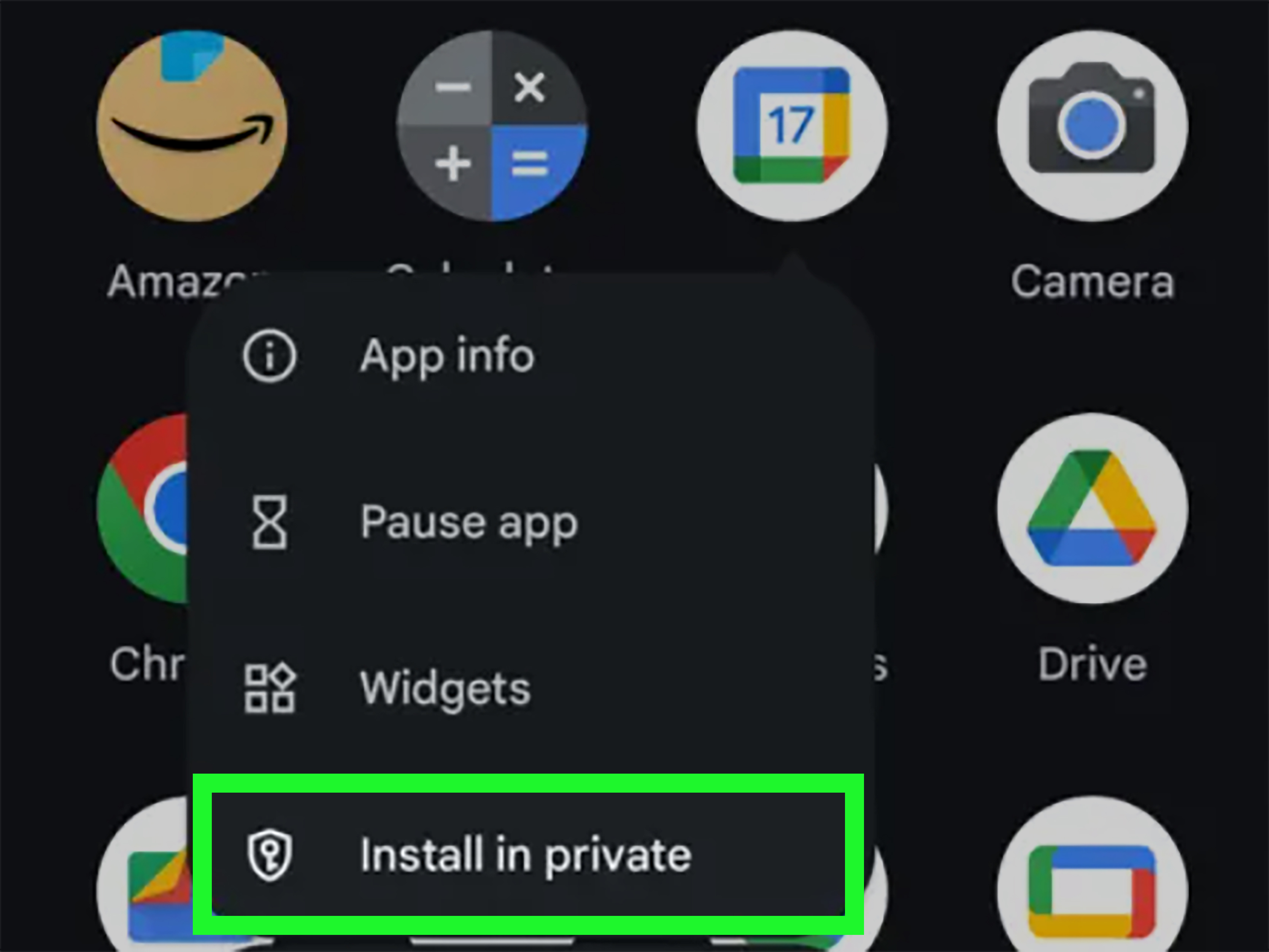
Newer Android devices running Android 15 may include Private Space. This creates a separate, locked area where sensitive apps can live away from your normal app drawer.
If your phone supports it, you can set it up like this:
- Go to Settings > Security & privacy.
- Tap Private Space.
- Set a separate lock if available.
- Install or move your private messaging app into that space.
Once locked, apps in Private Space are hidden from the launcher, recent apps, settings visibility in many cases, and normal searching. That makes it much more private than a simple archived thread.
Option B: Secure Folder on Samsung
Samsung users have had a similar perk for a while: Secure Folder. It lets you place apps and files inside a separate protected container with its own passcode or biometric lock.
To set it up on many Galaxy phones:
- Go to Settings > Security and privacy or Biometrics and security.
- Tap Secure Folder.
- Sign in and create your security method.
- Add the messaging app or other private content inside the folder.
Samsung also lets you hide the Secure Folder icon from the apps screen on some devices, which adds another layer of discretion. Very James Bond. Much less tuxedo.
One thing many people miss
If you hide messages in Private Space or Secure Folder, you should also check notification settings. Otherwise, the app may still show alerts outside the private area, which defeats the whole point. Privacy is not very private when your phone shouts, “New message from Alex 💋” in the middle of lunch.
Best use case
This is the best option if you share your phone, keep highly personal conversations, or want a separate place for sensitive apps. It is also useful for people who want to hide not just message content, but the existence of certain conversations or apps altogether.
Downside
Not every Android phone has this feature. Some work phones may disable it. And if you rely on instant notifications, remember that private-space apps can behave differently when locked.
Which Method Is Best?
The answer depends on what you mean by “hide.”
- Want to stop people from reading texts on your screen? Use Method 1.
- Want to clean up your message list and tuck away old chats? Use Method 2.
- Want stronger privacy for the app itself? Use Method 3.
For many people, the best setup is a combination: hide lock-screen previews, archive low-priority chats, and use Private Space or Secure Folder for truly sensitive messaging apps.
Common Mistakes to Avoid
Confusing archiving with deleting
Archived chats are still there. Deleting removes them permanently. If you only want to hide a conversation, do not tap buttons like you are in a speed round.
Forgetting notification previews
You can hide an app and still leak message content through notifications. Always check lock-screen and app-level notification settings.
Assuming every Android phone works the same way
Android is a big family, and some members are more dramatic than others. Pixel, Samsung, Motorola, and OnePlus may all place privacy settings in different menus. If one path does not match your device, use the Settings search bar and type phrases like lock screen, notifications, private space, or secure folder.
Relying only on “hidden” features without a screen lock
If your phone has no PIN, password, or biometric lock, you are basically putting a curtain on a house with no front door. Start with a strong device lock.
Extra Privacy Tips for Android Messages
- Use a PIN, password, fingerprint, or face unlock on your device.
- Turn off notification content on wearables if your smartwatch mirrors messages.
- Mute noisy group chats so they do not light up your screen all day.
- Use spam blocking tools in your messaging app to reduce suspicious texts.
- Keep your phone updated so privacy features work properly.
Real-Life Experiences With Hiding Messages on Android
I have seen three very different kinds of Android users try to solve this problem, and each one taught the same lesson: the right method depends on your everyday habits.
The first type is the casual privacy person. This is someone who does not have secret double-agent texts, but also does not want a bank alert, doctor’s message, or family conversation appearing on the lock screen while the phone sits on a desk. For this person, hiding lock-screen previews is usually enough. The change feels small at first, but it makes a huge difference. The phone still works normally, notifications still arrive, and there is no learning curve. It is the privacy version of wearing sunglasses: low effort, high reward.
The second type is the organized user who hates clutter as much as exposure. I have watched people archive conversations and immediately feel calmer because their inbox stops looking like a garage sale. Archived threads are useful for shipping updates, food delivery messages, old appointment reminders, and chats that are not urgent but still worth keeping. The main catch is that archiving can surprise people. They think the thread is hidden for good, then a new reply arrives and the conversation bounces back like it never left. It is not a flaw, exactly. It is just a reminder that archiving is more like tidying than true hiding.
The third type is the serious privacy user. Maybe they share a device with family. Maybe they keep work and personal life on one phone. Maybe they just prefer an extra barrier between their main screen and sensitive apps. For these users, Private Space or Secure Folder feels like a completely different level of control. Once set up properly, it is reassuring. You stop worrying that someone scrolling through your phone for a photo will wander into your private messages by accident. The setup takes longer, yes, but the peace of mind is better too.
What people often discover after trying these methods is that no single feature fixes every privacy problem. Hiding lock-screen content protects you from wandering eyes. Archiving helps you manage visibility inside the app. Private spaces protect the app itself. They work best together, not as replacements for one another.
In real life, the smartest setup is usually layered. Keep previews hidden. Archive what you do not need visible every day. Then place truly sensitive messaging apps in a protected private area if your phone supports it. That combination feels practical instead of paranoid. And in the age of glowing screens, practical privacy is honestly a pretty good superpower.
Conclusion
If you are wondering how to hide messages on Android, the best answer is refreshingly simple: hide previews, archive conversations, or lock the app inside a private space. Each method solves a different privacy problem, and together they give you much more control over what other people can see.
If you only want to stop embarrassing message previews, tweak the lock screen. If you want a cleaner inbox, archive chats. If you want stronger privacy, use Private Space or Secure Folder. No drama. No shady apps. No need to toss your phone into the ocean.
Pick the method that matches your routine, test it once, and your Android phone will feel a lot more private from that moment on.