Note: Menu names may vary a little depending on your Samsung Galaxy model, One UI version, carrier, and whether you use a physical SIM or eSIM.
Sometimes you want to make a call without handing out your phone number like party favors. Maybe you are calling about a Marketplace listing, checking in with a business you may never contact again, or simply protecting your privacy. Whatever the reason, learning how to hide your caller ID on a Samsung Galaxy is surprisingly easy. No hacker hoodie required.
The good news is that Samsung Galaxy phones usually include a built-in caller ID setting that lets you control whether your number appears when you make calls. If that setting is missing, grayed out, or acting dramatic, there is also a quick per-call method that works through many carriers: dialing *67 before the number.
In this guide, you will learn the exact steps to hide your caller ID on a Samsung Galaxy, when the setting may not appear, what to do if your carrier overrides it, and when caller ID blocking does not work. By the end, you will know how to keep your number private without turning your phone into a mystery novel.
Why Hide Your Caller ID on a Samsung Galaxy?
There are plenty of normal, practical reasons to hide your caller ID. Privacy is the obvious one, but it is not the only one. Some people prefer not to share their personal number when calling a one-time contact. Others want to avoid repeated callbacks from businesses, service providers, or strangers they do not know well.
Here are a few common situations where blocking your number can make sense:
- Calling about a classified ad or online marketplace purchase
- Contacting a business for a one-time question
- Separating personal and temporary communications
- Protecting your number when calling back an unfamiliar contact
- Adding a small layer of privacy to outgoing calls
That said, use this feature responsibly. Hiding your caller ID is a privacy tool, not a free pass to be shady, annoying, or the main villain in someone else’s afternoon.
How to Hide Your Caller ID on a Samsung Galaxy in 6 Easy Steps
On many Samsung Galaxy phones, the process takes less than a minute. The exact wording can differ by phone model and carrier, but the overall path is usually very similar.
-
Step 1: Open the Phone app
From your Home screen or Apps screen, tap the Phone app. This is the same app you use for normal calls. You do not need to install anything extra or dive into obscure settings that look like they were hidden by a mischievous software wizard.
-
Step 2: Tap the three-dot menu
Look in the upper-right corner of the Phone app for the three vertical dots. Tap them to open more options. On some older Galaxy phones, the menu layout may look slightly different, but there is usually still a way to reach call settings from within the Phone app.
-
Step 3: Tap Settings
From the drop-down menu, tap Settings. This brings you into the call-related options for the Samsung dialer. If you use dual SIMs, your phone may ask which line or SIM you want to manage. Choose the one you want to use for private calls.
-
Step 4: Open Supplementary services or Additional settings
Scroll until you see something like Supplementary services, Additional settings, or a similarly named call menu. Samsung and carriers do love renaming things just enough to keep life interesting. Tap that option to continue.
-
Step 5: Tap Show my caller ID or Caller ID
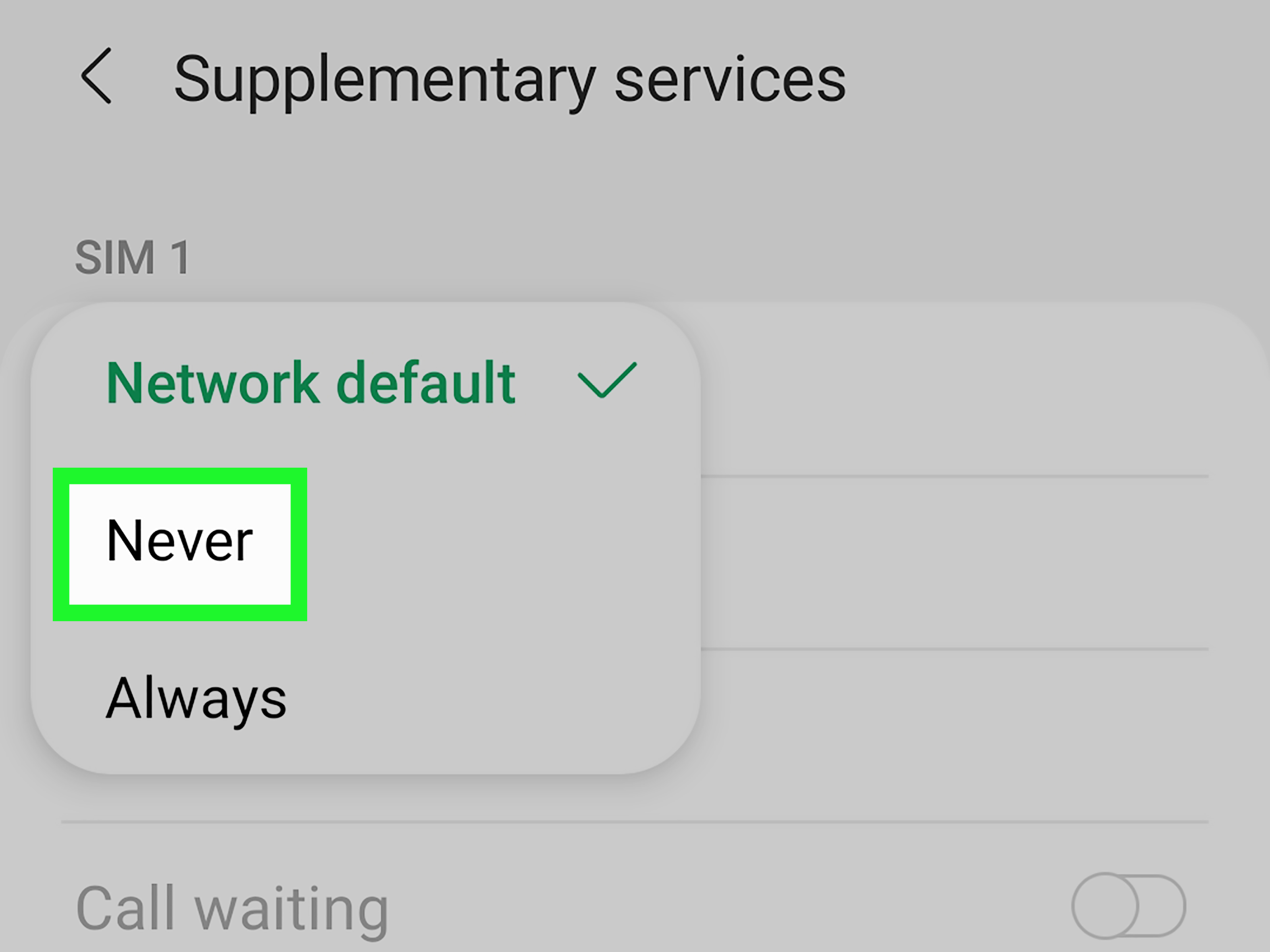
Inside that submenu, look for Show my caller ID or simply Caller ID. Tap it to open the available choices. Typical options include:
- Network default your carrier decides
- Hide number your number stays private
- Show number your number displays normally
-
Step 6: Select Hide number
Choose Hide number. That is it. On supported Galaxy devices and networks, your outgoing calls should now appear as Private, Anonymous, Blocked, or something similar on the other person’s phone.
After you select Hide number, make a quick test call to someone you know. That way, you can confirm the setting is working before you rely on it for an important call.
What If the Caller ID Option Is Missing?
If you do not see Show my caller ID on your Samsung Galaxy, do not panic and do not assume your phone has developed trust issues. In many cases, the missing option is related to your carrier, your SIM setup, or the software version on your device.
Here are the most likely reasons:
- Your carrier controls caller ID directly on the network side
- Your phone model uses a different label, such as Additional settings
- Your SIM or eSIM has not fully loaded network options
- Your line is managed through a business or family account with restrictions
- Your device software needs an update
If the setting is missing, try these fixes:
- Restart your Galaxy phone
- Update the phone software and the Phone app
- Remove and reinsert the SIM if you use a physical SIM
- Check your carrier account settings
- Call your carrier and ask whether caller ID blocking is enabled for your line
Some carriers let you block caller ID for all outgoing calls directly through your account settings. Others may need to enable the feature on their side, even if your Samsung phone has the menu built in.
The Fast Alternative: Use *67 for One Private Call
If you do not want to hide your number all the time, there is a simple shortcut. Before dialing the number, enter *67. Then place the call as usual.
For example:
*67 555-123-4567
This method is great when you only want privacy for one call and do not want to change your Samsung Galaxy settings permanently. It is quick, familiar, and widely supported by major U.S. carriers.
Use *67 when:
- You only need to block your number once
- Your Samsung caller ID setting is unavailable
- You want a fast workaround without changing phone settings
- You share a device or line and do not want to alter the default behavior
In many cases, the person you call will see Private, Anonymous, or a similar label. That is the phone equivalent of knocking on the door while wearing sunglasses.
When Hiding Caller ID Will Not Work
Caller ID blocking is useful, but it is not magic. There are situations where your number may still be transmitted or where the call will not go through as blocked.
Here are the main limitations:
- 911 and emergency services: your number may still be transmitted for safety reasons
- Toll-free numbers: many 800, 888, 877, and similar numbers can still receive your number
- Some business lines: certain systems reject or do not accept blocked calls
- Carrier restrictions: your provider may handle caller ID settings differently
- International calling: caller ID behavior may vary by country and network
If a business or institution requires visible caller ID for verification, hiding your number may cause your call to be ignored, routed strangely, or blocked entirely. In those situations, it is often better to show your number or use a separate business line, VoIP number, or Google Voice setup if appropriate.
How to Turn Caller ID Back On
Changed your mind? No problem. Reversing the setting is as easy as hiding it.
- Open the Phone app
- Tap the three-dot menu
- Tap Settings
- Open Supplementary services or Additional settings
- Tap Show my caller ID or Caller ID
- Select Show number or Network default
If your line is blocked at the carrier level by default, some carriers also let you temporarily reveal your number for a specific call by dialing *82 before the number. That can be helpful when you need a hospital, customer service department, or office to actually answer instead of ignoring your mysterious “Private” call.
Troubleshooting Tips for Samsung Galaxy Caller ID Settings
If your caller ID still shows even after you selected Hide number, work through these checks:
- Confirm the correct SIM is selected: especially important on dual-SIM Galaxy phones
- Make a test call to different phones: some recipients’ devices display blocked calls differently
- Check for a carrier override: your network may be set to display caller ID by default
- Use *67 as a backup: if the permanent setting is unreliable, per-call blocking may still work
- Restart the phone: old-school, yes, but still weirdly effective
If none of that works, contact your carrier and ask two direct questions:
- Does my line support outgoing caller ID blocking?
- Can you enable or disable default caller ID blocking on my account?
Best Practices for Using Caller ID Blocking
Hiding your caller ID is useful, but it works best when you use it with a little strategy and a little common sense.
- Use it for privacy, not for deception
- Test it before an important call
- Do not rely on it for emergency or toll-free calls
- Turn it off when calling businesses that screen private numbers
- Consider a separate number if you need regular privacy for work or selling online
In other words, caller ID blocking is like a rain jacket. Handy in the right weather, but not the solution to every climate problem.
Conclusion
If you have been wondering how to hide your caller ID on a Samsung Galaxy, the process is usually simple: open the Phone app, head into the call settings, find Show my caller ID, and choose Hide number. That handles ongoing privacy for most outgoing calls. If you only need to hide your number once, *67 is the quick fix many carriers still support.
The one catch is that caller ID blocking is partly controlled by your carrier, so the menu may look different, be missing, or behave differently on some Galaxy devices. When that happens, a short call to your carrier or a quick test with *67 can save a lot of frustration.
The bottom line? Your Samsung Galaxy gives you solid privacy tools. You just need to know where Samsung hid the setting. Irony noted.
Real-World Experiences With Hiding Caller ID on a Samsung Galaxy
One of the most common experiences people report is using caller ID blocking when contacting strangers through online marketplaces. Imagine selling a desk, a bike, or an old monitor. You may need to call the buyer once to confirm pickup, but you may not want your personal number saved forever by someone you will never speak to again. In that kind of situation, hiding caller ID on a Samsung Galaxy can feel less like a fancy tech trick and more like basic digital hygiene.
Another common scenario involves returning missed calls. Sometimes a number calls more than once, but there is no voicemail, no identifying text, and no reason to trust it right away. Calling back with a hidden number can give people a little breathing room. If it turns out to be a delivery driver, a local office, or a legitimate contact, great. If it turns out to be spam, an aggressive salesperson, or someone who somehow got the number from the internet’s dusty basement, at least the call did not confirm a personal line.
Work-life separation is another big reason people appreciate this setting. Not everyone has a dedicated second phone or a business number. Freelancers, side hustlers, tutors, repair techs, and people coordinating one-time gigs often use their personal Samsung Galaxy for everything. That works fine until clients start calling at odd hours or saving the number long after the job is done. Hiding caller ID can help create a small but meaningful boundary when a person needs to make one quick call without opening the door to endless follow-up.
There is also the very human experience of expecting the feature to work instantly, only to discover that carriers have their own opinions. Some people find the Hide number setting right away and everything works perfectly. Others tap through every menu on their Galaxy phone only to discover the option is missing, renamed, or buried under a different submenu. That moment usually produces the same reaction: “Cool, cool, cool… why is this harder than ordering coffee?” In practice, the fix is often simple: switch to *67, restart the phone, or contact the carrier to confirm the line supports caller ID blocking.
Many users also notice that blocked calls are not always welcomed warmly. Some businesses, offices, and customer service lines simply ignore private numbers. That can be frustrating, but it is also useful to know. Real-world experience teaches a practical lesson: hidden caller ID is great for personal privacy, but it is not always ideal when calling medical offices, banks, schools, or companies that screen incoming calls. In those cases, showing the number may actually save time.
Overall, the experience of hiding caller ID on a Samsung Galaxy tends to be less about secrecy and more about control. People like being able to decide when their number is shared and when it is not. That choice matters. In a world where contact information travels fast and sticks around forever, even a tiny privacy setting can feel surprisingly empowering. Sometimes the smartest phone habit is not adding another app. It is simply using the settings already built into the device sitting in your hand.