The Sims 3 is old enough to remember when DVDs were cool, launchers were moody, and “minimum requirements” sounded more like a suggestion than a warning. Yet here we are, years later, still building dream houses, trapping Sims in suspiciously doorless rooms, and reinstalling the game because nostalgia has excellent timing. The good news is that installing The Sims 3 on a PC is still very doable. The slightly less-good news is that the method depends on how you own the game.
In this guide, we’ll walk through the three main ways to install The Sims 3 on a PC: from a disc, through the EA app, and through Steam. We’ll also cover what to do when the installer acts like it woke up on the wrong side of 2009, plus a few practical tips for getting the game running on a modern Windows machine without losing your patience or your eyebrows.
Before You Install The Sims 3 on PC
Before choosing an install method, make sure you know which version of The Sims 3 you actually own. That sounds obvious, but this game has lived several lives. You might have an old retail disc, a digital purchase tied to EA, or a Steam copy sitting quietly in your library like a Sim waiting for instructions.
It also helps to prepare a few basics first:
- Use a Windows PC with enough free storage for the base game and any packs.
- Sign in to the correct EA account or Steam account before redeeming anything.
- Install the base game first, then add expansion packs and stuff packs.
- If you are using discs, make sure your PC has an optical drive or an external USB DVD drive.
- Run installers as an administrator if Windows gets picky.
One important reality check: The Sims 3 is an older PC game, so modern hardware can be both a blessing and a tiny bit dramatic. The game may install cleanly but still need minor troubleshooting afterward, especially on newer Windows systems. That is normal. It is annoying, yes, but normal.
Method 1: How to Install The Sims 3 on PC From a Disc
If you still own the physical disc version, first of all, congratulations on keeping track of it. Second, yes, you can still install The Sims 3 from disc on a PC. This is the most old-school method, but it still works when the disc, product code, and drive all cooperate like civilized adults.
What You Need for a Disc Install
You will need the original game disc, the product code, and a working DVD drive. On many modern PCs, that means using an external USB DVD drive because built-in optical drives have mostly gone the way of floppy disks and unskippable startup jingles.
Steps to Install The Sims 3 From Disc
- Insert the The Sims 3 disc into your DVD drive.
- If AutoPlay appears, choose the install option.
- If nothing happens, open This PC, open the disc drive manually, and look for a file like Setup.exe or Install.exe.
- Run the installer and follow the on-screen instructions.
- Enter the product code when prompted.
- Let the base game finish installing before touching any expansion pack discs.
After the base game is installed, you can install expansion packs and stuff packs. If you are working with disc-based add-ons, install them after the base game. It is also smart to keep your install order organized instead of free-styling your way into launcher chaos.
Common Disc Problems
The most common issue is simple: the disc does not start automatically. That usually means AutoPlay is disabled or Windows is ignoring the disc like a cat ignores expensive toys. In that case, manually browsing the disc and running the installer file is the fix.
Another problem is a product code that says it has already been used. That can happen because many older codes are one-time-use registrations. If your goal is to tie a retail copy to your EA account, you may need to redeem the code through EA rather than relying on the disc alone. If the code is already attached to another account, that becomes an account issue rather than a disc issue.
Disc installs are best for players who already own the physical game and want to use what they have. They are not the easiest route, but they are often the cheapest route if the game is already sitting on your shelf next to other artifacts from the age of jewel cases.
Method 2: How to Install The Sims 3 Through the EA App
If you bought The Sims 3 through EA or redeemed a valid retail code to your EA account, the EA app is usually the cleanest way to install it on PC. Think of it as the modern approach: fewer discs, fewer moving parts, and fewer opportunities for your computer to ask, “What year is it?”
How to Install The Sims 3 in the EA App
- Download and install the EA app on your Windows PC.
- Sign in with your EA account.
- If you already own the game digitally, open your Library.
- Select The Sims 3 and start the download.
- If you have a product code, choose Redeem Code from the Library area.
- Enter the code, confirm it, and then download the game.
Once the base game is installed, digital packs often install automatically or appear in your library ready to download. EA also recommends installing the base game first and then adding packs afterward, which is sensible advice because launchers love order almost as much as Sims love setting the kitchen on fire while making waffles.
When the EA App Is the Best Option
The EA app is a strong choice if you bought the game directly from EA, redeemed a retail code successfully, or want one central place to manage installs and downloads. It is also useful for players dealing with some newer hardware quirks. In 2025, EA posted a patch for The Sims 3 addressing the Alder Lake issue that stopped the game from launching properly on certain newer Intel processors. That matters because sometimes the hardest part of playing an older game is convincing it that your shiny new PC is not a hostile alien artifact.
EA App Tips for a Smoother Install
If the launcher throws a version mismatch message after pack changes, delete the Version.tag file inside your Documents > Electronic Arts > The Sims 3 folder and restart the launcher. If the game still acts stubborn, clear cache files, remove problematic mods, and test with a cleaner setup before blaming the whole universe.
For most players who want the least amount of friction, the EA app method is the most straightforward. You log in, redeem if needed, download, and go. As long as your account is the correct one, it feels pleasantly boring, which is exactly what installation should be.
Method 3: How to Install The Sims 3 on Steam
Steam is the favorite option for many PC players because it keeps games, updates, and library management in one place. If you bought The Sims 3 on Steam, installation is simple and familiar. Click button, wait for download, wonder whether you should also buy six expansion packs, accidentally buy nine. Classic Steam behavior.
How to Install The Sims 3 From Steam
- Install the Steam client on your PC and sign in.
- Purchase The Sims 3 from the Steam store or activate a valid Steam product key through the Games menu.
- Open your Library.
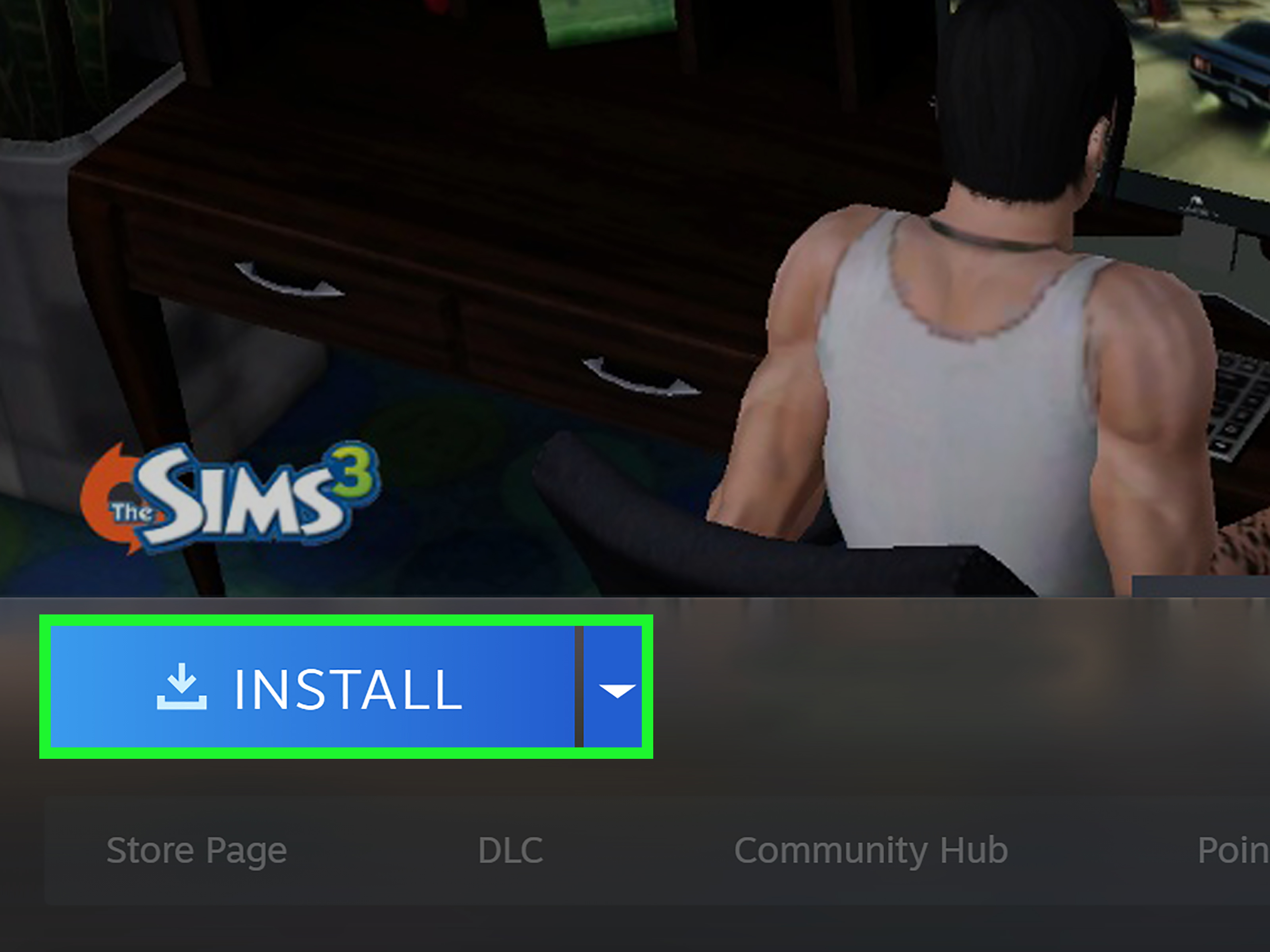
- Select The Sims 3 and click Install.
- Choose your install location and let Steam download the game files.
- Launch the game from your library when the install is complete.
Steam also gives you useful housekeeping tools. You can move the install folder, verify game files if something breaks, and repair library issues if a game suddenly pretends it does not live on your hard drive anymore.
Important Steam Notes
Steam officially stopped supporting Windows 7, Windows 8, and Windows 8.1 in 2024, so a modern Windows version is the safer choice for a fresh Steam install. Also, remember that the original store-page requirements for The Sims 3 reflect its old launch-era specs. Those numbers tell you the game was born in a different hardware universe; they do not guarantee a perfect modern experience with every combination of new CPU, GPU, and display setup.
Another practical tip: try to keep your base game and expansions in the same ecosystem whenever possible. Mixing storefronts can become messy, especially when registration keys and pack ownership are involved. The less launcher diplomacy you need, the better.
Who Should Use the Steam Version?
The Steam version is ideal for players who already prefer Steam, want easier file verification, or like keeping their PC games under one digital roof. It is also great for people who trust Steam’s install flow more than they trust old retail media, which is fair. A scratched DVD is not exactly a modern confidence booster.
Which Sims 3 Install Method Is Best?
There is no single “best” method for everyone, but there is a best method for your copy of the game.
- Use disc if you already own the physical version and still have the code and drive.
- Use the EA app if you bought the game through EA or can redeem a retail product code successfully.
- Use Steam if your purchase lives on Steam and you want the easiest library-based PC install.
If you are buying the game today for convenience, digital is usually the less headache-heavy option. If you already own an older retail copy, then disc plus EA account redemption may be the bridge between vintage ownership and modern usability.
Troubleshooting Tips for Modern PCs
If The Sims 3 installs but does not behave, do not panic. This is a long-running game with a legendary talent for being both beloved and fussy.
Quick Fixes Worth Trying
- Run the launcher or installer as an administrator.
- Use Windows compatibility troubleshooting if the program refuses to cooperate.
- Verify the game files if you installed through Steam.
- Clear launcher cache or remove broken mods if the game crashes after startup.
- Check that your EA or Steam account actually owns the base game before chasing ghosts.
- For disc installs, manually run the installer if AutoPlay never appears.
If you are on a newer Intel system and the EA app version still struggles, make sure the game is fully updated. And if your issue started after uninstalling a pack, leftover launcher files can cause version errors that look scarier than they are.
Final Thoughts
Installing The Sims 3 on PC is not hard once you match the method to the version you own. Disc is the retro route, EA is the account-based route, and Steam is the library-first route. All three can work well, but the smoothest path usually comes from staying in one ecosystem, installing the base game first, and approaching the launcher with the calm confidence of someone who knows where the Setup.exe file lives.
And once the game finally launches, take a second to appreciate the moment. You did it. You crossed time, hardware generations, and software moods to return to one of the most gloriously chaotic life sims ever made. That deserves at least one new save file and probably an overly ambitious house build you will regret decorating room by room.
Real-World Experience: What Reinstalling The Sims 3 on PC Actually Feels Like
Reinstalling The Sims 3 in the modern PC era feels a bit like opening a time capsule and a puzzle box at the same time. You start with confidence. “I’ve done this before,” you tell yourself. “It’s just an install.” Then, somewhere between locating an old product code, remembering your EA password, and wondering why your brand-new desktop does not have a disc drive, you realize this is not just an installation. It is an event.
The disc method has the strongest nostalgia factor. There is something almost ceremonial about pulling out a physical case, hearing the disc click into place, and waiting for a launcher that looks like it has survived several economic cycles. If AutoPlay actually opens on the first try, it feels like finding money in an old jacket. If it does not, the mood changes fast, and suddenly you are browsing the disc manually like a digital archaeologist looking for Setup.exe in the ruins of a lost age.
The EA app experience is more efficient, but it has a different emotional tone. It is less “Saturday afternoon in 2009” and more “I would like this software to behave professionally.” When it works, it is excellent. You redeem a code, the game appears in your library, and the install begins without drama. It feels civilized. Mature. Almost suspiciously reasonable. Then you launch the game and remember that The Sims 3 itself has never been especially interested in behaving reasonably, which is part of its charm and part of its résumé.
Steam, meanwhile, feels like the method for people who want the process to stay on rails. You buy, install, verify files if needed, and move on. It is the cleanest modern experience, especially if your entire gaming life already lives inside Steam. There is comfort in seeing The Sims 3 sitting in a tidy library beside newer games, as if it were not capable of consuming your entire weekend with a single “just one more household” decision.
What makes the reinstall experience memorable is not just the technical process. It is the moment after. The launcher opens. The music kicks in. Suddenly you are not thinking about product codes, compatibility tools, or missing optical drives anymore. You are thinking about Sunset Valley, bad interior design choices, and whether this is finally the save where everyone becomes a successful, emotionally stable adult. It is not, of course. This is The Sims 3. Someone will burn macaroni, flirt at the wrong party, or decide now is the perfect time to practice guitar in the bathroom.
That is why people keep reinstalling it. Not because the process is always effortless, but because the payoff still works. The game still has personality, scale, and a kind of wonderful chaos that makes the effort feel worth it. Getting The Sims 3 installed on a modern PC is half technical task, half reunion. And when it finally runs, it does not feel like booting up an old game. It feels like visiting a familiar neighborhood where the houses are weird, the stories are messier, and somehow that makes everything better.