Google Drive is designed to make your files easy to reach, but the sign-in process can occasionally feel like a tiny digital scavenger hunt. Should you open the website, launch the desktop application, start from Gmail, or create a separate browser profile for your work account?
The good news is that all four approaches work on both Windows PCs and Macs. The best choice depends on whether you need quick browser access, automatic file synchronization, multiple account separation, or a safer temporary session on a shared computer.
This guide explains four practical ways to sign in to Google Drive on a PC or Mac. It also covers passkeys, two-step verification, account switching, security precautions, and common login problems.
What You Need Before Signing In
You need a Google Account to access private files in Google Drive. A Gmail address automatically comes with a Google Account, but Gmail is not mandatory. Google also allows people to create accounts using certain existing non-Gmail email addresses.
Keep the following items available before you begin:
- Your Google Account email address or phone number
- Your password, unless you use a passkey
- Your phone, authenticator, or security key if two-step verification is enabled
- Permission from an administrator if you use a managed work or school computer
During sign-in, Google may ask for a password, passkey, phone confirmation, authentication code, hardware security key, or QR-code scan. The exact challenge depends on your account settings, device, and whether Google recognizes the login attempt.
Way 1: Sign In Directly at the Google Drive Website
The fastest way to sign in to Google Drive on most computers is to visit the Drive website. It works in current versions of Chrome, Edge, Firefox, Safari, and other compatible browsers without installing additional software.
Steps for Windows and Mac
- Open your preferred web browser.
- Enter drive.google.com in the address bar.
- Select Go to Drive or Sign in if the login page appears.
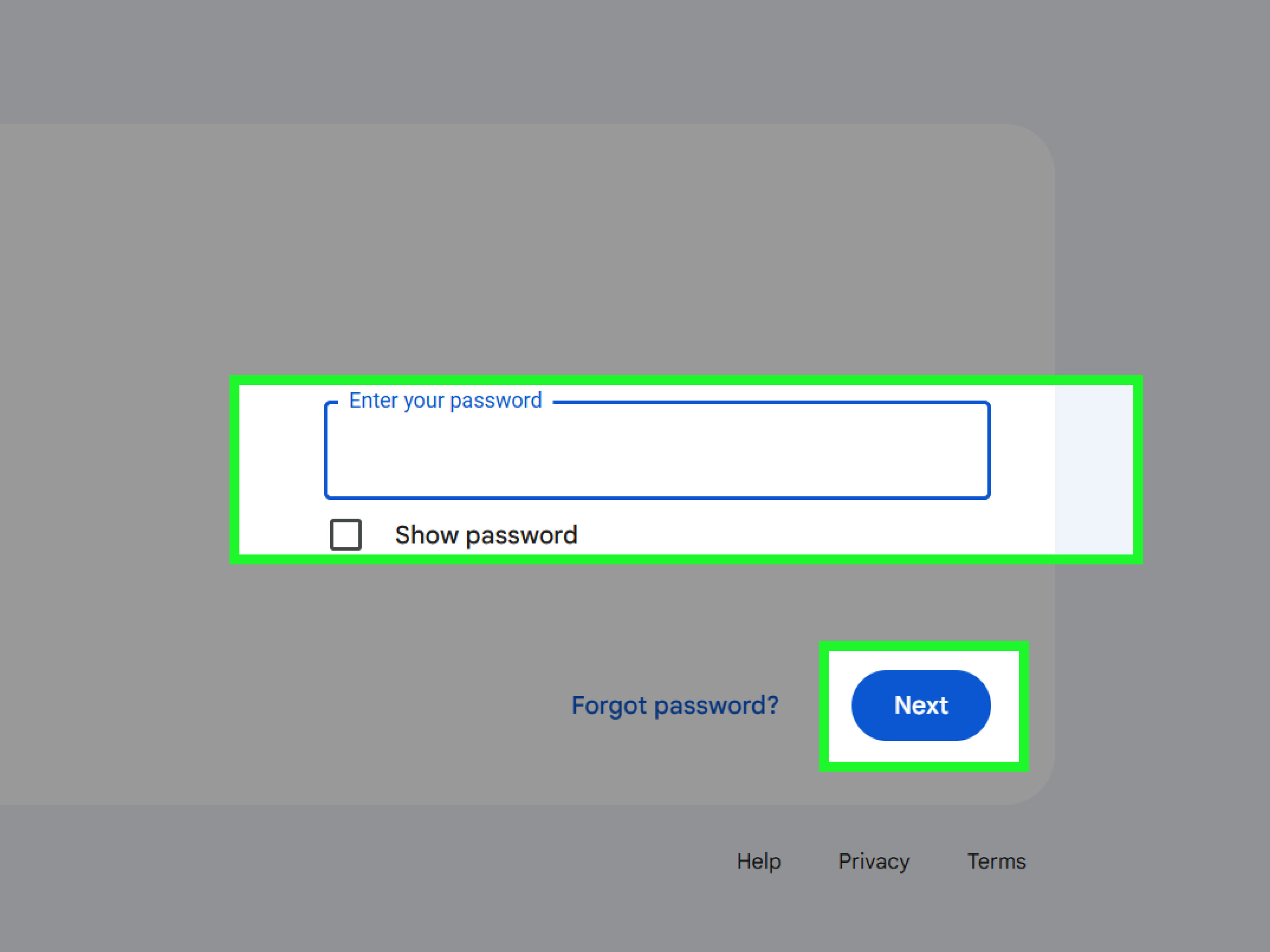
- Enter your Google Account email address or phone number.
- Click Next.
- Enter your password or complete the passkey prompt.
- Complete two-step verification if Google requests it.
After authentication, Google Drive normally opens to Home or My Drive. From there, you can upload files, create folders, share documents, search your storage, and open Google Docs, Sheets, or Slides.
When This Method Is Best
Direct browser access is ideal when you need to check a file quickly or use Drive on a computer where the desktop application is unavailable. It also avoids storing a synchronized copy of your cloud files on the machine.
Bookmarking the Drive website can make future visits faster. Just confirm that you are bookmarking the legitimate Google domain rather than a page reached through a suspicious email. A fake login page may look convincing enough to deserve an acting award.
How to Switch Accounts
If Drive opens under the wrong Google Account, click your profile picture in the upper-right corner. Select the correct account or choose Add another account. Google supports signing in to multiple accounts in one browser session, although one account is treated as the default.
Before requesting access to a file, verify that you are using the account to which the file was shared. Many “Access denied” errors are simply cases of the right person wearing the wrong digital name tag.
Way 2: Open Drive from Gmail or the Google App Launcher
If you are already signed in to Gmail, Google Calendar, Google Search, or another Google service, you usually do not need to enter your credentials again. You can open Drive through the Google app launcher.
Steps to Use the App Launcher
- Open Gmail or another Google service in your browser.
- Confirm that the profile picture in the upper-right corner belongs to the correct account.
- Click the nine-dot Google apps icon.
- Select Drive.
- If Drive is not immediately visible, scroll through the app list or use the direct Drive address.
This method is particularly convenient when your day begins in Gmail. You can read a message, open Drive from the app launcher, and attach or share the requested file without performing another full login.
Sign In from the Google Homepage
You can also begin at Google’s homepage. Click Sign in in the upper-right corner, authenticate with your Google Account, open the app launcher, and select Drive.
This route takes a few more clicks than entering the Drive address directly, but it is useful for people who already use the Google homepage as their browser’s starting page.
Watch the Active Account
The app launcher opens Drive using the account active on the current Google page. If you have personal, freelance, and company accounts open simultaneously, inspect the profile picture before uploading or sharing anything.
Accidentally saving a vacation spreadsheet to a corporate Drive may not end civilization, but it can produce an awkward conversation with the IT department.
Way 3: Sign In Through Google Drive for Desktop
Google Drive for desktop integrates cloud storage with File Explorer on Windows and Finder on macOS. Instead of opening a browser whenever you need a document, you can work with Drive files through familiar folders on your computer.
Install Drive for Desktop on a Windows PC
- Download Google Drive for desktop from Google’s official website.
- Open the downloaded GoogleDriveSetup.exe file.
- Follow the installation instructions.
- Launch Google Drive when installation finishes.
- Click Sign in with browser.
- Choose or enter the Google Account you want to connect.
- Approve the request to connect the desktop application to your account.
Install Drive for Desktop on a Mac
- Download the macOS installer from Google.
- Open the GoogleDrive.dmg file.
- Follow the onscreen installation steps.
- Open Google Drive from the Applications folder or menu bar.
- Select Sign in with browser.
- Authenticate with the desired Google Account.
- Allow any macOS permissions required for the features you plan to use.
How Desktop Sign-In Works
The application sends the authentication step to your web browser. Once you approve the connection, Drive for desktop returns to the application and begins preparing your files.
Depending on your settings, files may be streamed from the cloud as needed or mirrored to local storage. Streaming generally uses less disk space, while mirroring keeps selected content available locally. Choose based on your storage capacity, internet connection, and offline requirements.
Add Another Account
Drive for desktop can work with up to four accounts at the same time. To add one, click the Drive icon in the Windows system tray or macOS menu bar, click your profile picture, and select Add account. The new account is authenticated through your browser.
Multiple-account support is useful for separating personal files from work projects. Give each Drive location a careful look before dragging files into it. Cloud synchronization is impressively efficient, including when it is efficiently synchronizing something to the wrong account.
When Drive for Desktop Is the Best Choice
Use the desktop application when you work with Drive files throughout the day, edit large files in desktop programs, or need selected files available offline. It reduces browser tab clutter and makes cloud storage feel more like a regular computer drive.
On a managed company or school device, installation or account connection may be controlled by an administrator. Contact your organization’s support team if installation is blocked or the sign-in option is restricted.
Way 4: Use a Separate Browser Profile or Private Window
A separate browser session is helpful when you need to access a second Google Drive account without disrupting the account already open in your main window.
Option A: Create a Dedicated Browser Profile
A browser profile keeps history, bookmarks, cookies, extensions, and account sessions separate. It is the better long-term choice for people who regularly switch between work and personal Google Drive accounts.
Create a Chrome Profile
- Open Chrome on your PC or Mac.
- Click the browser profile icon in the upper-right corner.
- Select Add or Add Chrome profile.
- Choose whether to sign in to Chrome or continue without browser synchronization.
- Give the profile a recognizable name, such as “Work” or “Personal.”
- Open Drive and sign in with the appropriate Google Account.
Microsoft Edge also supports multiple profiles with separate settings and account sessions. Using visually distinct profile names and icons can prevent accidental uploads to the wrong Drive.
Option B: Use a Private Browsing Window
Private browsing creates a temporary session separate from the cookies in your normal browser window. It works well for a one-time login or for checking another account without permanently adding it to the regular account menu.
- Chrome on Windows: Press Ctrl + Shift + N.
- Chrome on Mac: Press Command + Shift + N.
- Edge: Open the menu and select New InPrivate window.
- Safari on Mac: Select File, then New Private Window.
- Firefox: Open the menu and select New Private Window.
Visit Google Drive in the private window, sign in, complete your work, sign out, and close every private window when finished.
Private browsing prevents the browser from retaining much of the local session history and cookie data after the session closes. It does not make you anonymous to websites, network administrators, employers, schools, or internet providers. Files you download also remain on the computer until you delete them.
Shared or Public Computer Warning
A private window reduces leftover browser data, but a public computer may still contain monitoring software or malware. Avoid accessing sensitive Drive files on an unfamiliar machine whenever possible.
Never save your password, never mark a public computer as trusted, and do not leave downloaded documents behind. Sign out manually and close the private session before walking away.
Which Google Drive Sign-In Method Should You Use?
| Method | Best For | Installation Needed | Account Separation |
|---|---|---|---|
| Direct Drive website | Quick access from any personal computer | No | Basic account switching |
| Google app launcher | People already signed in to Gmail or another Google app | No | Uses the active Google account |
| Drive for desktop | Frequent file access, synchronization, and offline work | Yes | Supports multiple connected accounts |
| Separate profile or private window | Work-personal separation or temporary access | No | Strong browser-session separation |
Make Your Google Drive Sign-In More Secure
Use Two-Step Verification
Two-step verification adds another identity check when someone signs in with your password. Depending on your configuration, the second step may involve a phone prompt, authenticator code, security key, or another approved method.
This protection matters because Drive may contain contracts, tax records, photographs, client documents, backups, and other information that deserves more security than a password inspired by your pet’s name.
Consider a Passkey
A passkey lets you authenticate using a device screen lock, fingerprint, facial recognition, PIN, or compatible security key. Because passkeys use cryptographic authentication tied to the legitimate service, they offer stronger resistance to conventional password phishing.
If your passkey is stored on another device, Google may display a QR code on the computer. Scan it with the phone containing the passkey, keep Bluetooth enabled if requested, and approve the login on the phone.
Review Connected Devices
Periodically open your Google Account security settings and review the devices and sessions with account access. Sign out of anything you no longer recognize or use.
Maintain Recovery Information
Keep your recovery phone number and recovery email current. These details can help Google confirm your identity if you forget your password, lose access to a verification device, or encounter a suspicious login challenge.
How to Fix Common Google Drive Sign-In Problems
You Are Signed In to the Wrong Account
Click your profile picture and inspect the active email address. Switch to the account that owns the file or received the sharing invitation. For recurring work-personal conflicts, create separate browser profiles instead of relying on memory.
The Login Page Keeps Reloading
Open a new browser window and try again. If the loop continues, temporarily disable extensions that modify cookies, scripts, privacy settings, or network traffic. An updated browser can also resolve compatibility problems.
Cookies Are Blocked
Google sign-in relies on browser cookies to maintain the session. Review your privacy settings and allow the cookies needed for Google Account authentication. Strict blocking rules or automatic cookie deletion can also cause repeated verification prompts.
Cached Data Is Causing an Error
Clearing relevant cache and cookie data can resolve corrupted sessions. Remember that this may sign you out of websites and remove saved site preferences. Confirm that your recovery information is current before deleting authentication data if you are uncertain about your password.
Drive for Desktop Will Not Connect
- Quit and reopen Drive for desktop.
- Confirm that your internet connection is working.
- Click Sign in with browser again.
- Check whether security software, a proxy, or a company policy is blocking the application.
- Disconnect and reconnect the account if the application offers that option.
- Install the current official version if the problem persists.
You Forgot Your Password or Username
Use Google’s official account recovery process. Answer the questions as accurately as possible and, when practical, perform recovery from a familiar device, browser, and location. Avoid businesses or individuals claiming they can bypass Google’s recovery system for a fee.
Your Work or School Account Is Restricted
Organization administrators can limit Drive for desktop, external sharing, account access, and other Workspace features. Contact the administrator rather than repeatedly changing browser settings on a managed device.
Frequently Asked Questions
Can I sign in to Google Drive without Gmail?
Yes. Google Drive requires a Google Account, but the account does not always need to use a Gmail address. An eligible existing email address can be associated with a Google Account.
Can I use two Google Drive accounts on one computer?
Yes. You can add multiple Google Accounts in a browser, create separate browser profiles, or connect multiple accounts through Drive for desktop.
Why does Google Drive keep asking me to sign in?
The browser may be deleting cookies, an extension may be interfering with authentication, the session may have expired, or Google may be requesting verification because the login appears unusual. Drive for desktop may also require reconnection after an account or security change.
Can I access Google Drive offline?
Drive for desktop can make selected files available offline. Some Google Docs, Sheets, and Slides content can also be prepared for offline browser use when the feature is correctly configured.
Is a private browser window safe for Google Drive?
It is useful for temporary account separation and reduces data retained by the browser after the session closes. It cannot guarantee that an unfamiliar computer is free from monitoring tools or malicious software.
Conclusion
The simplest way to sign in to Google Drive on a PC or Mac is to visit the Drive website directly. Opening Drive through Gmail or the Google app launcher is faster when you are already authenticated, while Drive for desktop is the strongest option for frequent file access and synchronization.
For multiple accounts, a dedicated browser profile keeps work and personal sessions organized. A private window is better for temporary access, provided you sign out, close the session, and avoid leaving downloaded files behind.
Whichever route you choose, protect the account with two-step verification or a passkey, maintain recovery information, and check the active account before uploading or sharing important files.
Real-World Experience: What the Four Sign-In Methods Are Actually Like
In everyday use, the direct website is usually the least complicated option. On a personal laptop, typing the Drive address into the browser can take only a few seconds, particularly when the account session is already active. It is the method I would recommend to someone who checks Drive occasionally and does not need cloud files woven into every corner of the operating system.
The browser method also makes troubleshooting easier. If Drive looks strange, a page refresh, a private window, or a different browser quickly reveals whether the problem is tied to cached data or an extension. The disadvantage is tab congestion. After a busy afternoon, Drive may be hiding among email, spreadsheets, meeting notes, news stories, and the recipe tab you opened three hours ago with extremely optimistic dinner plans.
Opening Drive from Gmail feels almost identical once you arrive, but the app launcher is surprisingly useful in a Google-centered workflow. When an email asks for a document, the nine-dot menu provides a natural bridge from the conversation to the file. The main risk is account confusion. A personal Gmail inbox opens a personal Drive, while a company inbox opens the organization’s Drive. Checking the profile picture before sharing a document becomes a valuable two-second habit.
Drive for desktop offers the smoothest experience for sustained work. Files appear in File Explorer or Finder, so opening a presentation or moving a PDF feels similar to using a local folder. Creative applications and office software can work with cloud files without forcing you to download and upload each item manually.
That convenience comes with responsibility. Moving or deleting a synchronized file may affect its cloud version. The application is not merely displaying a decorative copy of Drive; it is participating in the file system. Before reorganizing a large folder, it is worth confirming which account is connected and whether files are streamed, mirrored, shared, or available offline.
Multiple connected accounts work well when their names and locations are easy to distinguish. A personal Drive and a company Drive can coexist, but similarly named folders such as “Reports,” “Photos,” or “Documents” invite mistakes. Clear folder names and careful attention to the active account prevent the cloud-storage equivalent of putting the office keys in the refrigerator.
Separate browser profiles provide the cleanest experience for people who regularly use multiple identities. A Work profile can hold company bookmarks, extensions, Gmail, Calendar, and Drive, while a Personal profile keeps private browsing data and accounts separate. Different profile icons or themes make the distinction visible before a file is opened or shared.
A private window is more temporary. It is excellent for checking a second account once, testing whether cookies are causing a login problem, or opening a file shared with an alternate address. It becomes annoying when used as a permanent workflow because you must authenticate again after closing the session. Downloads also survive the private window, so temporary browsing does not automatically clean documents from the Downloads folder.
Passkeys can make all four methods feel faster after setup. Instead of typing a password and then entering another code, you may authenticate using a fingerprint, face scan, device PIN, security key, or approval on a nearby phone. The experience is especially convenient on a personal computer with biometric hardware.
The most reliable overall setup is a combination rather than a single method. Use a normal browser profile for everyday web access, Drive for desktop for files edited frequently, and a separate profile for a second long-term account. Reserve private browsing for temporary access and troubleshooting. That arrangement keeps Google Drive quick, organized, and far less likely to turn a simple file search into an account-switching obstacle course.
Editorial research verification: Google Drive Help, Google Account Help, Google Workspace Learning Center, Google Chrome Help, Apple Support, Mozilla Support, Microsoft Support, CISA, and NIST were consulted for current sign-in, private browsing, account security, passkey, and multi-account guidance.