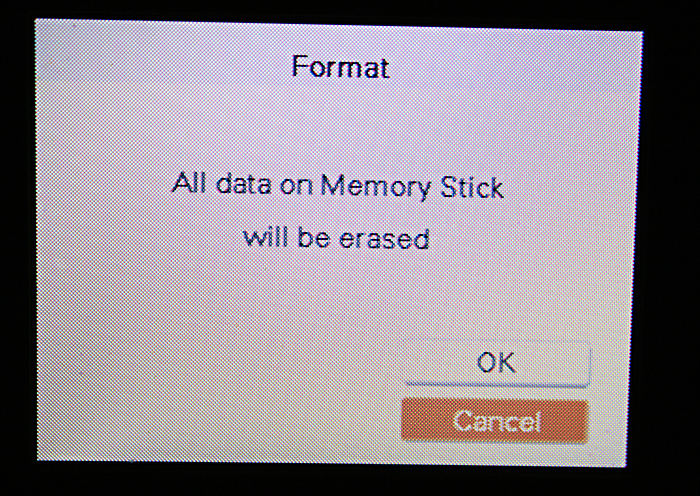
Formatting a memory card sounds like something only a tiny robot inside your camera should worry about. In reality, it is one of the simplest and most useful maintenance tasks you can do for an SD card, microSD card, or other removable storage device. Whether your card is acting strange, your camera refuses to save photos, your Android phone keeps complaining, or you just want a clean start, knowing how to format a memory card can save time, prevent file errors, and rescue you from the modern tragedy known as “Why are my vacation videos missing?”
Before we begin, let’s be very clear: formatting a memory card erases the data on it. That means photos, videos, documents, app files, mystery folders from 2017, and that one blurry picture of your thumb are all going away. If anything matters, back it up first. Copy the files to your computer, cloud storage, external drive, or another safe location before you click, tap, or select anything that says “Format.”
This guide explains four practical ways to format a memory card: on Windows, on Mac, on Android, and directly inside a camera or device. You will also learn which file system to choose, when to use quick formatting, what to do when a card refuses to format, and how to avoid common mistakes that shorten the life of your memory card.
What Does Formatting a Memory Card Actually Do?
Formatting prepares a memory card so a device can store files on it properly. Think of it like cleaning and reorganizing a tiny digital filing cabinet. The process creates a file system, removes old file references, and gives your camera, phone, computer, drone, dash cam, or game console a fresh structure for saving data.
There are two main ideas to understand:
Quick Format vs. Full Format
A quick format removes the file index and makes the card appear empty. It is fast, convenient, and usually enough for everyday use. A full format may scan the card more thoroughly and can take much longer, especially on large cards. If your memory card is new, healthy, and simply needs a clean start, quick format is usually fine. If the card has errors, freezes, or keeps corrupting files, a more thorough format may be worth trying.
File System: FAT32, exFAT, or NTFS?
The file system determines how files are stored. For memory cards, FAT32 and exFAT are the most common choices. FAT32 is widely compatible with older devices and smaller cards, but it has limits, including a maximum single-file size of 4GB. That can be a problem if you record long HD or 4K videos. exFAT is better for larger SDXC and microSDXC cards and supports much larger files, making it the go-to option for modern cameras, phones, drones, and video devices. NTFS is mainly used by Windows drives and is not usually the best choice for SD cards unless a specific device requires it.
Here is the simple rule: use the format your device recommends. When in doubt, format the card in the device that will use it most often.
Before You Format: Do These 5 Things First
Formatting is easy. Recovering files you forgot to back up is less easy and may involve panic, regret, and downloading software with names that sound like superhero sidekicks. Before you format your memory card, take a minute to prepare.
1. Back Up Important Files
Copy your photos, videos, documents, and other files to a safe location. Do not assume “I probably already saved these somewhere.” That sentence has broken many hearts.
2. Check the Write-Protect Switch
Full-size SD cards often have a small lock switch on the side. If the switch is in the locked position, your computer or camera may not let you format the card. Slide it back to the unlocked position and try again.
3. Use a Reliable Card Reader
A cheap or damaged card reader can cause connection problems. If the format fails, try another reader, another USB port, or a built-in SD card slot.
4. Confirm You Selected the Correct Drive
This is especially important on Windows and Mac. Formatting the wrong drive is the digital equivalent of washing your passport with your jeans. Check the drive name and capacity before confirming.
5. Keep the Device Powered
Do not remove the card during formatting. If you are formatting inside a camera, phone, dash cam, or game console, make sure the battery is charged or the device is plugged in.
Way 1: Format a Memory Card on Windows
Windows is one of the easiest places to format a memory card. It is a good option if you want to prepare a card for general storage, clean up an old card, or switch between FAT32 and exFAT.
How to Format an SD Card or microSD Card in Windows File Explorer
- Insert the memory card into your computer using an SD slot or USB card reader.
- Open File Explorer.
- Click This PC.
- Find the memory card under devices and drives.
- Right-click the memory card and choose Format.
- Select a file system. Choose exFAT for most modern cards 64GB or larger. Choose FAT32 for smaller cards or older devices when available.
- Leave allocation unit size as default unless your device gives a specific instruction.
- Enter a simple volume label, such as “CAMERA_CARD” or “SD_CARD.”
- Choose Quick Format for routine formatting.
- Click Start, confirm, and wait for the process to finish.
Once Windows says the format is complete, safely eject the card before removing it. This helps prevent write errors and keeps the card from leaving the computer in a bad mood.
When to Use Disk Management
If File Explorer does not show the card correctly, open Disk Management. You can right-click the Start button and select Disk Management, or search for “Create and format hard disk partitions.” Disk Management is useful when a card has strange partitions, shows the wrong capacity, or was previously used as boot media for something like a Raspberry Pi.
In Disk Management, locate the removable card carefully by checking its capacity. From there, you can delete old partitions if needed, create a new simple volume, assign a drive letter, and format it. Be extra cautious here. Disk Management is powerful, and powerful tools do not forgive sleepy clicking.
Best Windows Format Settings
For everyday users, these settings work well:
- 16GB or 32GB card: FAT32 is often a safe compatibility choice.
- 64GB, 128GB, 256GB, or larger card: exFAT is usually the better modern choice.
- For cameras: format in the camera after formatting on Windows, especially if the camera is picky.
- For Android: let Android format it if the card will stay in that phone or tablet.
Way 2: Format a Memory Card on Mac
Mac users can format memory cards with Disk Utility, which is built into macOS. It works for SD cards, microSD cards, USB drives, external drives, and other storage devices. The interface is friendly enough, but you still need to pay attention because “Erase” means exactly what it says. Apple did not name it “Maybe Tidy Up a Little.”
How to Format a Memory Card with Disk Utility
- Insert the memory card into your Mac using an SD slot, USB-C hub, or card reader.
- Open Disk Utility. You can find it in Applications > Utilities or search for it with Spotlight.
- In the sidebar, select the memory card under external devices.
- Click Erase.
- Enter a card name.
- Choose a format. Select exFAT for most modern large cards. Select MS-DOS (FAT) for smaller cards or older devices that need FAT32-style compatibility.
- If the Scheme option appears, choose Master Boot Record for broad compatibility with cameras, phones, and other devices.
- Click Erase and wait for the process to complete.
- Click Done, then eject the card safely.
Which Mac Format Should You Choose?
For a memory card that will move between Mac, Windows, cameras, and Android devices, exFAT is usually the best option for larger cards. It handles large files better than FAT32 and works across major operating systems. For older cameras, audio recorders, car stereos, GPS units, or devices with limited compatibility, FAT32 may be required.
Avoid choosing APFS or Mac OS Extended unless the card will only be used with Apple devices. Those formats are excellent for Mac storage but are not ideal for a card that needs to work in a camera, Windows PC, Android phone, or game console.
Mac Formatting Tip for Photographers
If you use a memory card in a DSLR, mirrorless camera, action camera, or camcorder, format it in the camera after using Disk Utility. Cameras often create their own folder structure, database files, and media indexes. Formatting in-camera helps the card behave exactly the way the camera expects.
Way 3: Format a Memory Card on Android
Android devices often use microSD cards for photos, videos, downloads, music, and sometimes apps. Formatting a memory card directly on Android is usually the best option if the card will live in that phone or tablet. Android can prepare the card as portable storage or, on some devices, internal/adoptable storage.
Portable Storage vs. Internal Storage
Portable storage means the microSD card can be removed and used in another device. It is ideal for photos, videos, documents, and music. Internal storage, sometimes called adoptable storage, treats the card as part of the phone’s built-in storage. This can allow apps and app data to use the card, but the card may become encrypted and tied to that specific device. In plain English: portable storage is a suitcase; internal storage is a built-in closet. You cannot casually take the closet to another house.
How to Format a microSD Card on Android
- Insert the microSD card into your Android phone or tablet.
- Open Settings.
- Go to Storage or Battery and device care > Storage, depending on your device.
- Select the SD card.
- Open the menu or storage settings.
- Choose Format or Format as portable.
- Confirm that you want to erase the card.
- Wait until Android finishes formatting.
Samsung Galaxy phones may place the option under Device Care or Storage Settings. Google Pixel devices and other Android models may show slightly different menu names, but the idea is the same: Settings, Storage, SD card, Format.
When Should You Format on Android Instead of a Computer?
Format on Android when the card will mainly be used in that Android device. This helps the phone create the correct structure and reduces annoying notifications like “SD card issue” or “Unsupported card.” It is also the better option if Android asks you to set up the card after insertion.
Use a computer only when you need to recover files, remove strange partitions, switch file systems manually, or prepare the card before giving it to another device.
Way 4: Format a Memory Card in a Camera, Console, Dash Cam, or with the SD Card Formatter
The best place to format a memory card is often inside the device that will use it. Cameras, action cams, dash cams, drones, GPS devices, and game consoles can be surprisingly picky. They may require a certain file system, folder layout, or card structure. Formatting inside the device lets it set the card up exactly the way it wants.
Format a Memory Card in a Camera
Most cameras have a Format option in the menu. The exact path depends on the brand and model, but it usually looks something like this:
- Insert the memory card into the camera.
- Turn the camera on.
- Press Menu.
- Go to setup, tools, wrench, or media settings.
- Select Format Card or Format Memory Card.
- Choose the card slot if your camera has more than one.
- Confirm the format.
Canon, Sony, Nikon, GoPro, and other camera makers commonly recommend formatting the card in the camera, especially if the card is new, was used in another camera, or was formatted on a computer. This helps reduce file errors and keeps the card ready for the camera’s photo and video system.
Format a Card in a Dash Cam or GPS Device
Dash cams write video constantly, which is hard on memory cards. Many dash cams and GPS devices include a formatting option in their settings menu. Some manufacturers recommend formatting regularly, especially for cards used for loop recording. If your dash cam starts showing card errors, stops recording, or creates corrupted video clips, formatting the card in the dash cam is a smart first step.
Format a microSD Card on a Game Console
Game consoles such as the Nintendo Switch can format microSD cards from the system settings menu. This is useful when installing a new card or moving from one card to another. Keep in mind that formatting a card for a console may erase existing files and prepare the card specifically for that console’s storage structure.
Use the Official SD Memory Card Formatter
The SD Association provides an official SD Memory Card Formatter for Windows and Mac. It is designed specifically for SD, SDHC, SDXC, and SDUC cards. This tool can be helpful when your operating system’s normal formatter does not prepare the card correctly or when you want a standards-based format for SD media.
The process is simple: install the formatter, insert the card, choose the correct card, select quick or overwrite formatting, and start. As always, double-check the selected drive. The software is helpful, but it cannot read your mind or your panic level.
Common Memory Card Formatting Problems and Fixes
The Memory Card Will Not Format
If your card refuses to format, check the lock switch, try another card reader, restart your computer, and test the card in another device. On Windows, Disk Management may help remove old partitions. On Mac, Disk Utility may be able to erase the card when Finder cannot.
The Card Shows the Wrong Capacity
This often happens when a card was used as boot media or has multiple partitions. Use Disk Management on Windows or Disk Utility on Mac to remove old partitions and create a new format. If the card still shows the wrong capacity, it may be counterfeit or failing.
The Device Says the Card Is Unsupported
The file system may not match the device’s requirements. Older devices may need FAT32, while newer devices may prefer exFAT. Some devices also have maximum supported card capacities. A 512GB microSD card may be impressive, but your old trail camera from the ancient civilization of 2013 may not appreciate it.
Files Keep Getting Corrupted
Frequent corruption can come from removing the card while files are still being written, using a low-quality card, using the wrong speed class for video, or a card that is wearing out. Back up the files, format the card, and test it. If corruption returns, replace the card.
The Card Is Write-Protected
For full-size SD cards, check the physical lock switch. For microSD cards inside an adapter, check the adapter’s switch. If the card remains write-protected across devices, it may be failing.
Which File System Is Best for a Memory Card?
There is no single perfect format for every device, but these rules work for most people:
- FAT32: Best for smaller cards and older devices. Very compatible but limited for large video files.
- exFAT: Best for most modern SDXC and microSDXC cards, especially 64GB and above.
- NTFS: Good for Windows drives, but not the usual choice for cameras, phones, or portable memory cards.
- APFS or Mac OS Extended: Best only for Apple-focused storage, not general SD card use.
If your device manual says to use a specific format, follow that instruction. Device makers know their hardware better than random forum comments written at 2:13 a.m. by someone named “CardWizard99.”
How Often Should You Format a Memory Card?
You do not need to format a memory card every day. However, regular formatting can help maintain clean storage, especially for cameras and dash cams. Photographers often format cards after safely transferring files. Dash cam users may format cards periodically because loop recording constantly writes and deletes video. Android users usually format only when setting up the card, fixing errors, or changing how the card is used.
Do not format as a substitute for buying a good card. If a card is old, slow, fake, physically damaged, or constantly failing, formatting may only give it a temporary spa day. Replace unreliable cards before they ruin important photos or footage.
Best Practices for Keeping Memory Cards Healthy
Buy from Trusted Sellers
Counterfeit memory cards are common. A fake card may claim to be 256GB but fail once you store more than a small amount of data. Buy from trusted retailers and reputable brands.
Use the Right Speed Class
For 4K video, burst photography, drones, and action cameras, card speed matters. A slow card can cause dropped frames, recording failures, or camera errors.
Do Not Fill the Card Completely
Leaving some free space can help performance and reduce errors. When your card is almost full, transfer files and format it instead of squeezing in “just one more video.” That video will probably be the one where your dog finally does something hilarious.
Eject Before Removing
On computers, always eject the card safely. On cameras and phones, wait until file transfers or recordings are complete before removing the card.
Replace Cards Before They Fail
Memory cards have a limited lifespan. If a card is used heavily for video, dash cam recording, or professional photography, replace it periodically. Storage is cheaper than regret.
Real-World Experience: What Formatting a Memory Card Teaches You
After working with memory cards across cameras, phones, laptops, drones, dash cams, and game consoles, one lesson becomes obvious: the card is small, but the chaos it can create is enormous. Most memory card problems begin with simple habits. Someone pulls the card out while the camera is still writing. Someone formats it on a computer, then wonders why the camera complains. Someone buys a suspiciously cheap “1TB” card online and discovers it has the emotional stability of a soap bubble.
The first useful experience is to treat formatting as part of a workflow, not a panic button. For example, photographers often transfer photos to a computer, verify the files, back them up, and then format the card in the camera before the next shoot. That routine is boring in the best possible way. Boring systems prevent exciting disasters. If you have ever arrived at a birthday party, wedding, product shoot, or family trip with a card full of old files and only 2% free space, you know that “I’ll clean it later” is not a strategy. It is a tiny trap wearing a hat.
The second experience is that formatting in the target device usually prevents weird behavior. A card formatted on Windows may look perfect on the computer but still irritate a camera. A card prepared on Mac may work beautifully for file storage but not behave exactly how a dash cam expects. When a device has its own Format option, use it. Cameras, dash cams, and consoles often create special folders and database files. Let the device do the housekeeping. It is like letting a restaurant arrange its own kitchen instead of wandering in and saying, “I alphabetized your soup.”
The third experience is to respect file systems. FAT32 is wonderfully compatible, but it is not ideal for large modern video files. exFAT is a better match for high-capacity cards and long video recordings. If a 4K camera keeps stopping after a few minutes, the card’s format, speed, or quality may be part of the problem. Formatting will not turn a slow card into a fast one, but the correct format can remove one possible obstacle.
The fourth experience is that not every card deserves saving. If a memory card repeatedly fails after formatting, shows the wrong capacity, corrupts files, or becomes read-only for no clear reason, retire it. Use it for noncritical experiments if you must, but do not trust it with once-in-a-lifetime files. A memory card that has betrayed you twice is not “quirky.” It is auditioning for the trash drawer.
Finally, formatting teaches a healthy respect for backups. The safest users are not the ones who never make mistakes; they are the ones who make mistakes with backups already in place. Copy files before formatting. Check that the copies open. Keep important media in at least two places. Then format confidently. The entire process takes only a few minutes, and it can prevent hours of troubleshooting later.
Conclusion
Learning how to format a memory card is a basic skill, but it makes a big difference. You can format a memory card on Windows, on Mac, on Android, or directly inside the device that uses it. For many users, the best method is the simplest: back up your files, insert the card into the camera, phone, dash cam, or console, and use that device’s built-in format option.
Choose FAT32 for older devices and smaller cards when compatibility matters. Choose exFAT for most modern high-capacity cards, especially when recording large videos. Avoid removing cards while data is being written, buy from reputable sellers, and replace cards that keep causing errors. A well-formatted memory card is not glamorous, but neither is losing 300 vacation photos because a tiny rectangle decided to become abstract art.
Note: This article is based on current, real-world formatting guidance from major operating system providers, device manufacturers, camera brands, and memory card standards resources. Always check your device manual when formatting cards for specialized equipment.