Zoom meetings are a little like modern dinner parties: someone is presenting, someone is nodding seriously, someone forgot they were on camera, and at least one person is definitely trying to find the “Gallery View” button. If you want to see multiple people at once instead of watching Zoom bounce from one active speaker to another, Gallery View is the setting you are looking for.
Gallery View on Zoom displays participants in a grid of video tiles. It is especially useful for online classes, team meetings, family calls, webinars with panelists, training sessions, virtual events, and any meeting where seeing reactions matters. Instead of focusing only on whoever is speaking, you can scan the room, read facial expressions, and avoid the awkward feeling that you are talking into a digital cave.
The good news: getting Gallery View is usually simple. The slightly less glamorous news: the exact steps depend on whether you are using Zoom on a desktop computer, a phone, a tablet, the web app, or a Zoom Room. Your device, internet connection, app version, and meeting size can also affect how many people you can see at once.
This guide explains three practical ways to get Gallery View on Zoom, plus troubleshooting tips for when Zoom refuses to cooperate like a cat near bathwater.
What Is Gallery View on Zoom?
Gallery View is a Zoom video layout that shows meeting participants in a grid. Each person appears in a tile, and the grid automatically adjusts as people join, leave, turn their cameras on, or turn their cameras off. On supported desktop setups, Zoom can show up to 25 or 49 participants per screen in Gallery View. If there are more participants than the screen can display, you can move between pages using arrows.
Gallery View is different from Speaker View. Speaker View highlights the person currently talking, which is helpful for presentations, lectures, and meetings where one person is leading the conversation. Gallery View is better when you want a room-like experience. Think brainstorming sessions, group discussions, virtual classrooms, team standups, and family calls where Aunt Linda’s facial reaction is half the entertainment.
Way 1: Get Gallery View on Zoom Desktop App
The easiest way to get Gallery View is through the Zoom Workplace desktop app on Windows, macOS, or Linux. The desktop app generally offers the most complete viewing controls, including the ability to choose how many participants appear per screen.
Step 1: Start or Join a Zoom Meeting
Open the Zoom desktop app and join a meeting as you normally would. You can also start your own meeting if you are the host. Once the meeting window opens, move your mouse over the Zoom screen if the controls are hidden.
Step 2: Click the View Button
Look in the upper-right corner of the meeting window for the View button. Click it, then choose Gallery or Gallery View. Zoom should switch from showing the active speaker to showing multiple participants in a grid.
If you do not see the View button right away, make sure your Zoom meeting window is large enough. On smaller windows, some controls may be tucked away or harder to spot. Expanding the meeting window or going full screen can make the layout options easier to find.
Step 3: Choose 25 or 49 Participants Per Screen
If you want to see more people at once, open Zoom settings from inside the meeting. In current versions of the Zoom Workplace desktop app, you can usually go to More, then Settings, then find the participant video display options. Look for Maximum participants per screen and choose either 25 participants or 49 participants.
The 49-participant option is not available on every computer. Zoom may hide or disable it if your processor, graphics performance, display setup, or app version does not support that many video streams. That is not Zoom being dramatic; showing 49 live video feeds at once requires more bandwidth and processing power than showing 25.
Step 4: Move Between Gallery Pages
If your meeting has more participants than Zoom can show on one page, use the left and right arrows in Gallery View to move through additional pages. For example, if your screen shows 25 participants and the meeting has 60 people, you will not see everyone at once. You will see one page of participants, then you can click through to the next page.
Helpful Desktop Tips
For the best desktop Gallery View experience, keep your Zoom app updated. Newer versions of Zoom Workplace often include layout improvements, performance updates, and better support for dynamic gallery features. A larger monitor also helps. Trying to view 49 people on a tiny laptop screen can make everyone look like postage stamps with opinions.
You can also customize the order of participants in Gallery View by dragging video tiles. This is useful if you want to keep presenters, students, interpreters, or team leaders in a predictable position. Hosts may also have options to save or deploy a custom gallery order, depending on account settings and meeting configuration.
Way 2: Get Gallery View on Zoom Mobile App
If you are using Zoom on an iPhone, iPad, Android phone, or Android tablet, Gallery View works differently. Mobile screens are smaller, so Zoom uses gestures and simplified controls instead of the full desktop layout menu.
Step 1: Join a Meeting in the Zoom Mobile App
Open the Zoom Workplace mobile app and join a meeting. By default, Zoom mobile usually opens in Active Speaker View. That means the person currently speaking appears large on your screen, while other participants may appear as smaller thumbnails or not appear until you change the view.
Step 2: Swipe Left to Enter Gallery View
On many phones, you can switch to Gallery View by swiping left from Active Speaker View. After swiping, Zoom shows multiple participants on the screen at the same time. Keep swiping left to view additional participants if the meeting has more people than your screen can display.
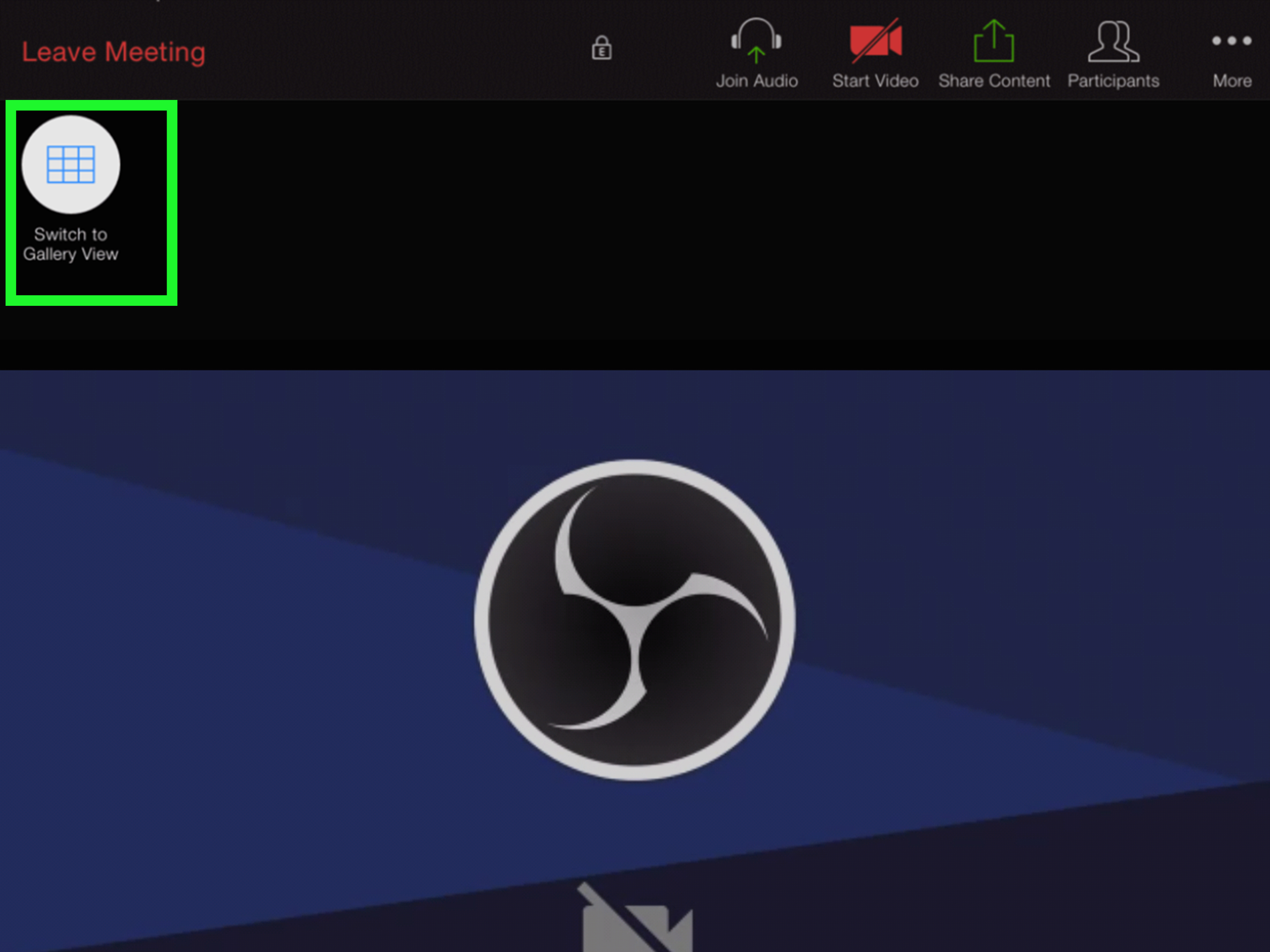
On some tablets, Zoom may show a visible option such as Switch to Gallery View near the top-left corner when meeting controls are visible. If you do not see controls, tap the screen once to make them appear.
Step 3: Swipe Right to Return to Speaker View
To go back to Active Speaker View, swipe right until you return to the main speaker screen. On tablets, tap the layout option again and choose the active speaker layout if available.
Why Gallery View May Not Appear on Mobile
Gallery View on mobile usually requires more than one participant, and on many phones it may require at least three people in the meeting before the gallery option becomes available. If you are in a one-on-one meeting, Zoom may keep you in Speaker View because there is not much of a “gallery” to show. A gallery of two people is basically a digital staring contest.
The number of participants you can see on mobile depends on your device, screen size, orientation, and app version. Tablets generally display more people than phones. Turning your device horizontally may also help, although not every device shows dramatically more tiles in landscape mode.
Mobile Tips for a Better Gallery View
Use Wi-Fi when possible, especially for larger meetings. Gallery View requires your device to receive multiple video streams, which can use more bandwidth. If your internet connection is weak, Zoom may reduce video quality or limit what you see to keep the meeting stable.
Also, close unnecessary apps before joining large meetings. Phones and tablets can overheat or slow down when handling multiple video feeds, especially during long calls. If Zoom starts lagging, freezing, or draining your battery like it has a personal grudge, switch to Speaker View or plug in your device.
Way 3: Get Gallery View on Zoom Web App, Zoom Rooms, and Special Setups
The third way to get Gallery View is through non-standard Zoom setups, such as the Zoom Web App, Zoom Rooms, or dual-monitor arrangements. These options are useful when you cannot install the desktop app, you are joining from a shared conference room, or you want to manage a more professional meeting layout.
Using Gallery View in the Zoom Web App
If you join Zoom from a browser, you may be using the Zoom Web App. The web app supports viewing participants in Speaker View and Gallery View, but the controls may be less obvious than in the desktop app. During a meeting, look for the video layout or view controls in the meeting window. Depending on your browser, account settings, and meeting configuration, Gallery View may appear as a layout option.
For the most reliable experience, use an updated browser and avoid old browser extensions that interfere with meeting controls. If Gallery View is missing in the web version, try refreshing the page, switching browsers, or joining through the Zoom desktop app instead. The desktop app remains the best choice for users who frequently need advanced video layout options.
Using Gallery View in Zoom Rooms
Zoom Rooms are conference room systems designed for shared meeting spaces. If you are in a Zoom Room, you can usually change the layout from the room controller or touch screen. Tap View, then select Gallery View if it is available.
Zoom Rooms can display Gallery View on one or more screens, depending on how the room is configured. In a single-display room, Gallery View appears on that display. In a multi-display setup, one screen may show shared content while another shows participant video. This is helpful for hybrid meetings because in-room participants can see remote attendees while still viewing slides, documents, or screen shares.
Using Dual Monitors for a Better Zoom Layout
If you use two monitors with the Zoom desktop app, you can enable dual-monitor mode in Zoom settings. This allows Zoom to place meeting content across separate screens. For example, one monitor can show shared content while the other shows Gallery View or Speaker View.
To enable this, open the Zoom desktop app, go to settings, and look for the dual-monitor option under general display settings. Once enabled, join a meeting and adjust the layout on each screen as needed. This setup is excellent for teachers, presenters, hosts, moderators, and anyone who has ever said, “I need more screen space,” while surrounded by six open windows and a cold cup of coffee.
Why You Cannot See Gallery View on Zoom
If Gallery View is missing, limited, or not showing enough participants, the cause is usually one of a few common issues. Here is how to troubleshoot without spiraling into a full technology identity crisis.
Your Meeting Does Not Have Enough Participants
Gallery View may not appear in very small meetings, especially on mobile. If you are alone in a test meeting or speaking with only one other person, Zoom may keep the layout simple. Add another participant or test during a larger meeting to confirm whether Gallery View is available.
Your Zoom App Is Outdated
An older Zoom app can limit layout options or hide newer controls. Update Zoom Workplace on your computer, phone, or tablet. On desktop, you can usually check for updates from your profile menu inside the app. On mobile, update Zoom through the App Store or Google Play.
Your Computer Does Not Support 49 Participants
If you can use Gallery View but cannot select 49 participants per screen, your computer may not meet the requirements. The 49-person grid needs more processing power and bandwidth. If Zoom only offers 25 participants, use that setting. It is still a perfectly useful layout, and your laptop fan may thank you.
Your Internet Connection Is Too Weak
Gallery View receives many video streams at once. If your connection is unstable, Zoom may reduce video quality or make layout changes feel sluggish. Try moving closer to your router, switching to a wired connection, closing bandwidth-heavy apps, or asking household members to pause large downloads during important meetings.
You Are Watching a Screen Share
When someone shares their screen, Zoom may prioritize the shared content. You can often adjust the layout during screen sharing by choosing side-by-side mode, changing the view, or moving participant video thumbnails. On dual monitors, you can place shared content on one display and Gallery View on the other.
The Host Changed the Meeting Layout
Hosts can spotlight speakers, manage participant video, and sometimes influence what attendees see. If someone is spotlighted, your view may focus on that person. You may still be able to switch your personal view, but in some cases the host’s settings affect the meeting experience. If you are in a class, webinar, or formal event, the layout may be intentionally controlled.
Gallery View vs. Speaker View: Which One Should You Use?
Use Gallery View when interaction matters. It is ideal for team discussions, workshops, interviews, coaching calls, virtual classrooms, group therapy sessions, networking events, and family gatherings. Seeing everyone helps you notice reactions, confusion, smiles, raised hands, and the universal “I have a question but I am not sure when to jump in” face.
Use Speaker View when focus matters. It works well for lectures, presentations, sermons, keynote speeches, one-on-one meetings, and interviews where one person should be visually emphasized. Speaker View also reduces visual clutter, which can be helpful during long meetings or when your brain has reached its daily limit of tiny rectangles.
Many Zoom users switch between both views during the same meeting. For example, you might use Speaker View during a presentation, then switch to Gallery View during questions and discussion. The best layout is not about being fancy. It is about choosing the view that helps you follow the conversation.
Best Practices for Using Gallery View on Zoom
Use a Larger Screen When Possible
Gallery View becomes more useful on larger screens. A desktop monitor or laptop screen gives you more visual space than a phone. If you attend many Zoom meetings, using an external monitor can make Gallery View easier on your eyes.
Hide Non-Video Participants When Needed
If many participants have cameras off, your gallery can become a collection of black boxes, initials, and profile photos. Depending on your Zoom settings, you may be able to hide non-video participants. This makes the gallery cleaner and helps you focus on people who are actively on camera.
Pin Important Participants
Pinning a video keeps a specific participant visible on your screen. This only affects your personal view, not what everyone else sees. Pinning is useful when you want to keep an interpreter, instructor, client, or key teammate easy to find.
Use Spotlight Carefully
Spotlighting is different from pinning. A host or co-host can spotlight someone for everyone in the meeting. This is useful for presentations and panels, but it can also override the natural feel of Gallery View. Use it when one or more speakers should be emphasized for the whole group.
Keep Your App and Device Updated
Zoom’s interface changes over time. The button may move, the settings menu may be renamed, and new layout features may appear. Updating the app helps you avoid outdated controls and improves performance during larger meetings.
Real-World Experiences: What Gallery View Feels Like in Actual Zoom Meetings
After using Zoom in different settings, Gallery View feels less like a feature and more like a meeting survival tool. In small team meetings, it helps create a sense of shared space. You can see when a coworker is ready to speak, when someone agrees, and when someone is clearly searching for the mute button with the panic of a person defusing a bomb.
In virtual classrooms, Gallery View is especially valuable. Teachers and trainers often rely on facial expressions to know whether a concept is landing. Speaker View may show only the student who just made a comment, but Gallery View gives a broader sense of the room. If half the class looks confused, it may be time to slow down. If everyone looks alert, the lesson is probably working. If everyone’s camera is off, well, that is a different article.
For family calls, Gallery View makes online gatherings feel warmer. Instead of jumping from one speaker to another, everyone is visible together. Grandparents can see all the grandchildren at once, siblings can react in real time, and nobody has to ask, “Who’s on the call?” every seven minutes. It is also useful for celebrations, birthday calls, holiday chats, and remote reunions where the goal is not just hearing voices but seeing faces.
In professional meetings, Gallery View helps with moderation. A host can monitor engagement, notice raised hands, and spot participants who may want to contribute. In brainstorming sessions, seeing the group can make discussion feel more balanced. The visual grid reminds everyone that the meeting is collaborative, not a one-person broadcast.
That said, Gallery View is not always the best choice. In very large meetings, it can become visually overwhelming. Forty-nine video tiles may sound impressive until your eyes start bouncing around like a squirrel in a coffee shop. For webinars, lectures, or slide-heavy presentations, Speaker View or side-by-side mode may be more comfortable. The smart move is to switch views based on the moment.
One useful habit is to start meetings in Gallery View during greetings and check-ins, then move to Speaker View when someone presents. After the presentation, switch back to Gallery View for discussion. This gives meetings a natural rhythm: room view, focused view, room view again.
Another experience-based tip is to test your layout before important meetings. If you are hosting a class, interview, workshop, or client presentation, join a few minutes early and check whether Gallery View works as expected. Make sure your Zoom app is updated, your monitor is arranged properly, and your internet connection is stable. A two-minute check can prevent the classic opening line: “Can everyone hear me, and also why can I only see Bob?”
For users with older laptops, Gallery View may work best at 25 participants instead of 49. That is not a failure. A smooth 25-person view is better than a laggy 49-person view that turns your computer into a space heater. If your video freezes, your fan gets loud, or the meeting becomes choppy, reduce the number of visible participants or switch to Speaker View temporarily.
The biggest lesson is simple: Gallery View is about control. It lets you choose how you experience the meeting instead of letting Zoom decide for you. Whether you are teaching, learning, managing, interviewing, celebrating, or just trying to confirm that everyone is still awake, Gallery View gives you a wider view of the virtual room.
Conclusion
Getting Gallery View on Zoom is usually quick once you know where to look. On desktop, click View and choose Gallery. On mobile, swipe left or tap the gallery option when available. In web, Zoom Rooms, or dual-monitor setups, use the layout controls built into that environment.
If Gallery View does not appear, check your meeting size, update the Zoom app, confirm your device supports the layout you want, and make sure your internet connection can handle multiple video streams. You may not always get 49 faces on one screen, but you can almost always improve the way you see and participate in a Zoom meeting.
Note: This article is written for web publication and reflects current practical guidance for using Gallery View in Zoom Workplace, including desktop, mobile, browser-based, and room-based meeting setups.