Typing the trademark symbol should not feel like cracking a secret code from a spy movie. Yet the tiny superscript-looking ™ can be surprisingly slippery when you need it fast. You are writing a product name, polishing a brand guide, updating a website, editing a Google Doc, or sending a quick email, and suddenly your keyboard acts like it has never heard of branding before.
Good news: the trademark symbol is not hiding. It simply lives in different places depending on your device, operating system, app, and keyboard layout. On Windows, it may be a shortcut. On Mac, it is often a simple Option-key combo. In Microsoft Word, AutoCorrect can practically do the work while sipping coffee. In HTML, the cleanest route is a character entity. On phones, copy-paste and text replacement are usually the heroes.
This guide explains 12 practical ways to type the trademark symbol ™ on any device, including Windows PCs, Macs, iPhones, iPads, Android phones, Chromebooks, Linux systems, Microsoft Word, Google Docs, websites, and everyday apps. Keep this page handy, because the next time you need to write something like FreshFizz™, PixelNest™, or “my cat’s unofficial snack brand™,” you will know exactly what to do.
What Is the Trademark Symbol ™?
The trademark symbol, written as ™, is commonly used beside a brand name, product name, slogan, or logo to show that a person or business is claiming it as a trademark. In the United States, TM is often used for goods, while SM may be used for services. You do not need a federal registration to use ™ for a claimed mark, but the registered trademark symbol ® should be reserved for marks that are officially registered.
In technical terms, the trademark symbol is a Unicode character. Its Unicode code point is U+2122, and in HTML it can be written as ™ or ™. That may sound nerdy, but it matters because different systems use those codes to display the same little symbol across browsers, documents, databases, and apps.
Quick Answer: Copy the Trademark Symbol Here
If you are in a hurry, copy this:
™
Copying and pasting is not cheating. It is efficiency wearing comfortable shoes. Still, if you type the symbol often, learning one or two shortcuts below will save you time and reduce formatting headaches.
12 Ways to Type the Trademark Symbol ™
1. Type ™ on Windows with the Alt Code
One of the classic Windows methods is the Alt code. Place your cursor where you want the symbol, hold down the Alt key, type 0153 on the numeric keypad, and release Alt.
Shortcut: Alt + 0153 = ™
This works best on full-size keyboards with a separate number pad. If you are using a compact laptop keyboard, your number row may not work for Alt codes. Some laptops have a hidden numeric keypad activated with the Fn key, but many modern laptops have abandoned that trick entirely. In that case, try the Windows emoji panel, Character Map, Microsoft Word shortcut, or copy-paste method instead.
2. Type ™ in Microsoft Word with Ctrl + Alt + T
Microsoft Word makes typing the trademark symbol wonderfully easy. Put your cursor in the document and press:
Ctrl + Alt + T
This inserts the ™ symbol instantly. It is one of the fastest methods for writers, marketers, students, office workers, and anyone who spends half their day inside Word documents wondering why every brand name needs one more tiny floating symbol.
For related symbols, Word also supports shortcuts for copyright and registered trademark marks. But for the trademark symbol specifically, Ctrl + Alt + T is the one to memorize.
3. Type ™ in Microsoft Word and Let AutoCorrect Fix It
Microsoft Word can also convert simple text into symbols automatically. Type:
(tm)
Then press the spacebar. Word will usually change it to:
™
This is useful because you do not have to remember a keyboard shortcut. You only need to remember the letters “tm” inside parentheses. If it does not work, check your AutoCorrect settings. Some users turn AutoCorrect off because it has a charming habit of “correcting” perfectly good words into tiny disasters. When AutoCorrect is enabled, though, this method is quick and dependable.
4. Use Windows Character Map
Windows includes a built-in utility called Character Map. It lets you search for symbols, copy them, and paste them into almost any app.
Here is how to use it:
- Click the Windows search bar.
- Type Character Map.
- Open the Character Map app.
- Search or scroll until you find the trademark symbol.
- Select ™, click Copy, and paste it where needed.
This method is slower than a shortcut, but it is reliable. It is especially helpful when you are working in an app that does not support Word shortcuts or when your keyboard does not have a numeric keypad.
5. Use the Windows Emoji and Symbols Panel
Windows also has a built-in emoji and symbols panel. Press:
Windows key + .
That means the Windows key plus the period key. The panel opens with emoji, symbols, and special characters. Depending on your Windows version and settings, you can browse symbol categories or search for the trademark symbol.
This is a good method for casual typing in email, chat apps, social media posts, project management tools, and other places where Alt codes feel a bit too “1998 computer lab.”
6. Type ™ on Mac with Option + 2
On many Mac keyboard layouts, the fastest way to type the trademark symbol is:
Option + 2
Place the cursor where you want the symbol, hold the Option key, press 2, and release. That should produce:
™
This shortcut is one of the easiest methods on any device. If it does not work, your keyboard layout may be different. In that case, use the Character Viewer method below.
7. Use Mac Character Viewer
Mac users can insert symbols with the Character Viewer. Press:
Control + Command + Space
Then search for “trademark” or “TM.” Click the ™ symbol to insert it into your text.
The Character Viewer is useful because it works across many Mac apps, including Pages, Mail, Notes, Messages, browsers, and design tools. It is also great for finding other symbols, such as ©, ®, arrows, math signs, currency marks, and emoji. Basically, it is the Swiss Army knife of things your keyboard forgot to print on the keys.
8. Type ™ on iPhone or iPad with Text Replacement
The iPhone and iPad keyboard does not always put the trademark symbol within easy reach. The most convenient long-term solution is Text Replacement.
Set it up like this:
- Open Settings.
- Tap General.
- Tap Keyboard.
- Tap Text Replacement.
- Tap the plus sign.
- Enter ™ as the phrase.
- Enter a shortcut such as tmx or ;tm.
- Save it.
After that, typing your shortcut can expand into the trademark symbol. Choose a shortcut you will not type by accident. For example, tm alone might trigger too often, while ;tm or tmx is less likely to interrupt normal typing.
9. Type ™ on Android with Personal Dictionary or Keyboard Shortcuts
Android devices vary by manufacturer and keyboard app, but many allow custom dictionary entries or text shortcuts. If you use Gboard, Samsung Keyboard, or another modern Android keyboard, look for settings related to Dictionary, Personal dictionary, Text shortcuts, or Text correction.
A common approach is:
- Open your keyboard settings.
- Find Dictionary or Personal dictionary.
- Add ™ as a custom phrase.
- Create a shortcut such as tmx.
- Save and test it in a text field.
If your keyboard does not support custom shortcuts, copy and paste the symbol once, then pin it in a clipboard manager if your device supports clipboard history. Android has many keyboard variations, so the exact path may differ, but the idea is the same: create a tiny shortcut that expands into ™.
10. Insert ™ in Google Docs
Google Docs gives you a few practical options. The simplest is to use the built-in special character tool:
- Open your Google Doc.
- Click Insert.
- Select Special characters.
- Search for trademark.
- Click ™ to insert it.
In many cases, Google Docs can also automatically convert (tm) into ™ if substitutions are enabled. You can check this under Tools and Preferences. This makes Google Docs handy for repeated writing tasks like product descriptions, brand pages, press releases, and SEO drafts.
11. Type ™ on Linux or Ubuntu with Unicode Input
On many Linux systems using GNOME, Ubuntu, or similar desktop environments, you can enter Unicode characters directly by code point.
Use this sequence:
Ctrl + Shift + U, then type 2122, then press Enter or Space.
The result is:
™
This method is powerful because it works for many Unicode characters, not just the trademark symbol. The only catch is that you need to know the code point. For the trademark symbol, remember 2122. Think of it as the symbol’s backstage pass.
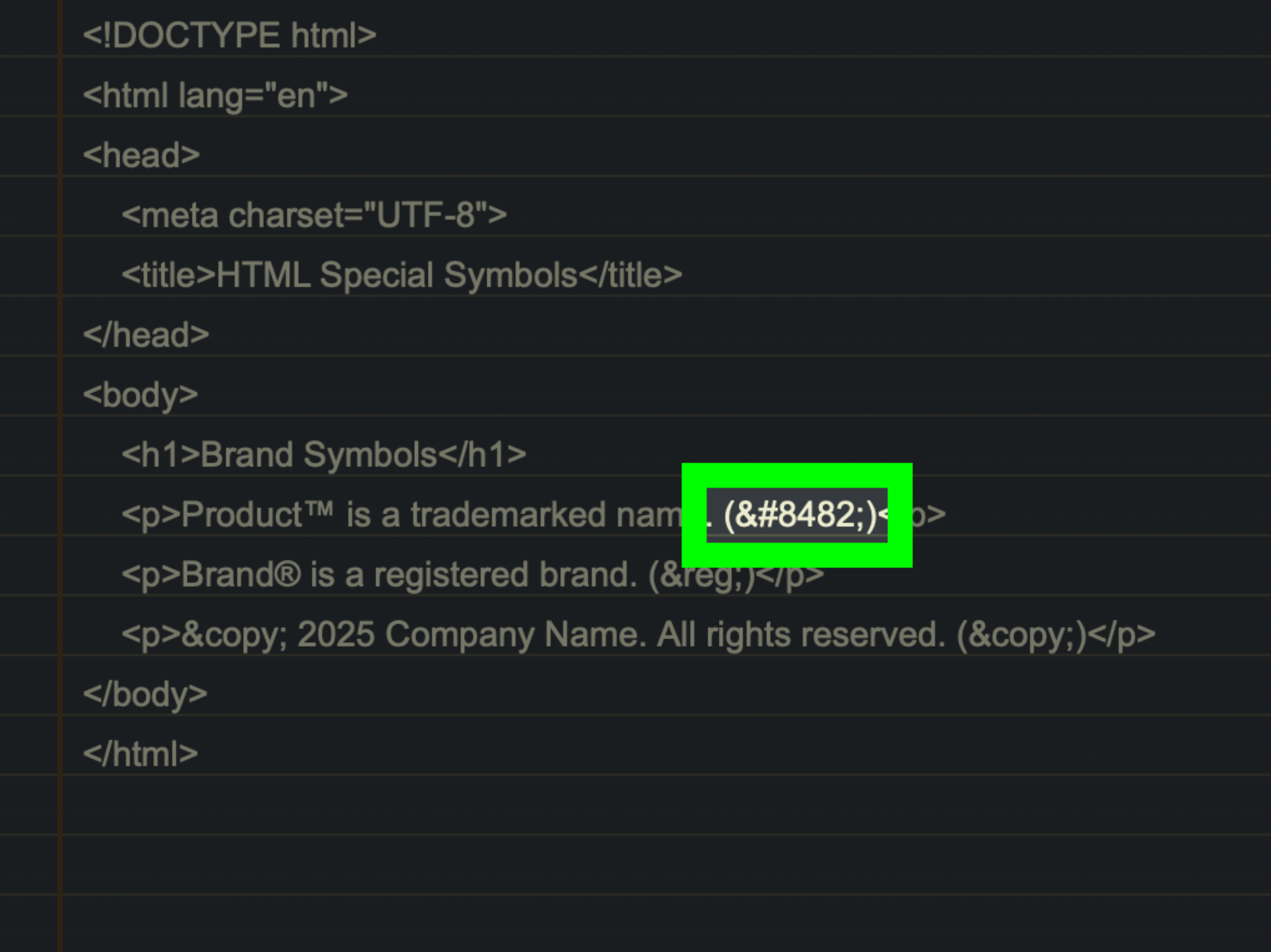
12. Use HTML Code for Websites and Blogs
If you are writing website content, editing HTML, or working inside a CMS, you can use an HTML character reference. The most readable option is:
™
You can also use the numeric version:
™
Both should display as:
™
For SEO writers, bloggers, developers, and ecommerce teams, this is a clean method because it keeps the symbol consistent in HTML. For example:
FreshFizz™ sparkling water
When rendered by the browser, it becomes:
FreshFizz™ sparkling water
Bonus Method: Copy and Paste the Trademark Symbol Anywhere
Copy-paste deserves its own moment of applause. If shortcuts fail, keyboards misbehave, or an app refuses to cooperate, simply copy ™ and paste it where you need it.
This works in emails, browser fields, content management systems, social media captions, spreadsheets, notes, messaging apps, and most design software. It is not the fanciest method, but it is the one that saves you when you are on deadline and your computer decides to develop a personality.
Trademark Symbol vs Registered Trademark Symbol: Do Not Mix Them Up
The trademark symbol ™ and the registered trademark symbol ® are related, but they are not interchangeable.
Use ™ When Claiming a Trademark
The ™ symbol tells readers that you are claiming a word, phrase, design, or brand element as a trademark. It is commonly used for unregistered marks or marks in the application process. Businesses often use it with product names, brand names, taglines, app names, course names, and merchandise names.
Use ® Only for Registered Marks
The ® symbol means the mark is registered. In the United States, that typically means registration with the United States Patent and Trademark Office. Using ® when a mark is not registered can create legal problems, so do not sprinkle it around like decorative confetti.
Best Practices for Using the ™ Symbol in Content
Use It on the First or Most Prominent Mention
In marketing copy, it is common to use ™ on the first prominent mention of a brand or product name. You usually do not need to repeat it every single time. Too many symbols can make a paragraph look like it got attacked by punctuation mosquitoes.
Keep It Close to the Mark
Place the trademark symbol immediately after the mark, with no space:
Correct: FreshFizz™
Less ideal: FreshFizz ™
Do Not Use It as a Decoration
Although people sometimes use ™ humorously online, professional content should use it intentionally. If you are writing for a brand, follow the company’s style guide. If you are unsure whether a mark should carry ™, ask the legal or brand team.
Make Sure It Displays Correctly
Most modern systems support the trademark symbol, but formatting can still vary. Check how it looks in your final environment: website preview, mobile screen, PDF, email client, ad platform, or printed material. A symbol that looks elegant in a Google Doc may look oddly spaced in a banner ad or email subject line.
Common Problems and Easy Fixes
The Alt Code Does Not Work
If Alt + 0153 does not work on Windows, check whether you are using the numeric keypad. The number row above the letters usually will not work for classic Alt codes. If your keyboard has no number pad, use Character Map, the emoji panel, Word shortcuts, or copy-paste.
The Symbol Looks Too Large or Too Low
The ™ symbol may look slightly different depending on the font. In some fonts, it appears neatly raised. In others, it looks awkward, oversized, or too close to the text. Try changing the font, using superscript formatting, or adjusting the design manually if you are working in a layout tool.
HTML Shows ™ Instead of ™
If your webpage displays the literal text ™ instead of the symbol, it may have been escaped incorrectly or placed inside a code block. In normal HTML text, ™ should render as ™. In a code example, it should remain visible as code.
Your Phone Keeps Autocorrecting the Shortcut
Use a shortcut that autocorrect will not mistake for a normal word. Instead of tm, try tmx, ;tm, or ttm. Shortcuts with punctuation are less likely to appear in ordinary writing.
Quick Reference Table
| Device or App | Best Method | Result |
|---|---|---|
| Windows | Alt + 0153 on numeric keypad | ™ |
| Microsoft Word | Ctrl + Alt + T | ™ |
| Microsoft Word AutoCorrect | Type ™, then space | ™ |
| Mac | Option + 2 | ™ |
| Mac Character Viewer | Control + Command + Space, search trademark | ™ |
| iPhone or iPad | Text Replacement shortcut | ™ |
| Android | Personal dictionary or copy-paste | ™ |
| Google Docs | Insert > Special characters | ™ |
| Linux or Ubuntu | Ctrl + Shift + U, 2122, Enter | ™ |
| HTML | ™ or ™ | ™ |
Real-World Experience: What Actually Works Best?
After using the trademark symbol in blog posts, website copy, brand guidelines, product descriptions, metadata, spreadsheets, presentations, and emails, one thing becomes obvious: the “best” method depends less on the symbol and more on where you are typing it. The symbol itself is tiny. The workflow around it is where the comedy begins.
For long-form writing, the most convenient methods are usually AutoCorrect and text replacement. If you write in Microsoft Word, typing (tm) and letting Word convert it is almost effortless. It feels natural because you are already typing letters. You do not need to pause, twist your fingers into a keyboard shortcut, or hunt through menus. For writers who create brand-heavy content, this can save real time.
On Mac, Option + 2 is hard to beat. It is fast, clean, and easy to remember once you use it a few times. Mac users who write product pages, press releases, landing pages, or ecommerce descriptions should memorize it. The Character Viewer is better when you need many symbols, but for ™ alone, the shortcut wins.
On Windows, the answer is more divided. If you have a full keyboard, Alt + 0153 is reliable. If you are on a laptop without a number pad, it becomes less useful. That is where the Windows emoji and symbols panel or Character Map comes in. In real work, many laptop users eventually give up on Alt codes and create their own reusable snippet. There is no shame in that. Productivity is not a keyboard gymnastics competition.
For website publishing, HTML entities are the safest habit. When editing raw HTML, ™ is readable and clear. Developers instantly understand it, content editors can recognize it, and browsers know what to do with it. If you paste the literal ™ symbol into a modern CMS, it will usually work, but HTML entities are still helpful in templates, code snippets, email markup, and technical documentation.
For phones, text replacement is the true champion. Copying and pasting ™ on a phone works, but it gets annoying quickly. If you often write captions, messages, product names, client notes, or social posts from your phone, create a shortcut. Use something like ;tm so it does not trigger accidentally. Once it is set up, you can type the symbol in seconds without digging through the internet like a digital archaeologist.
One practical tip: keep a small “symbol bank” in your notes app. Include ™, ®, ©, an em dash, a bullet, and any other characters you use often. This is useful when you are switching between devices, working in unfamiliar software, or using a locked-down company computer where settings cannot be changed.
Another experience-based tip is to check the final design, not just the draft. The trademark symbol can look different depending on the font, line height, and platform. In a headline, it may appear too high. In a logo lockup, it may need manual positioning. In email subject lines, it may render fine in one client and slightly awkward in another. Before publishing, preview the content wherever readers will actually see it.
Finally, do not overuse the symbol. In a polished article or product page, adding ™ after every mention can feel noisy. A clean approach is to use it on the first prominent mention, then continue with the plain brand name unless your brand or legal guidelines say otherwise. The goal is to protect and identify the mark, not make every paragraph look like a trademark parade.
Conclusion
The trademark symbol may be small, but it plays an important role in branding, marketing, legal communication, and professional publishing. Whether you are using Windows, Mac, iPhone, iPad, Android, Linux, Google Docs, Microsoft Word, or HTML, there is always a workable way to type ™.
For speed, use shortcuts: Ctrl + Alt + T in Word, Option + 2 on Mac, and Alt + 0153 on Windows keyboards with a numeric keypad. For reliability, use Character Map, Character Viewer, Google Docs special characters, or copy-paste. For repeated use, set up text replacement on your phone or computer. For websites, use ™.
Once you learn the method that fits your device, typing the trademark symbol becomes easy. Your keyboard may still hide it from you, but now you know where it lives.
SEO Tags
Note: This article is written for general educational and practical typing guidance. For legal questions about trademark registration, ownership, enforcement, or proper brand usage, consult a qualified trademark attorney or official trademark office guidance.